










App Configuration guide

How to install ?

First, Thank you for trusting us and choosing our service

This tutorial will help you on how to download our IPTV service on any device you have, Just choose the type of device you own and follow the steps provided.

If you do not understand or face any problem in the steps, just contact us on WhatsApp or e-mail, our team is waiting for you to provide assistance immediately.

How To Setup Tivi Mate 8k PRO

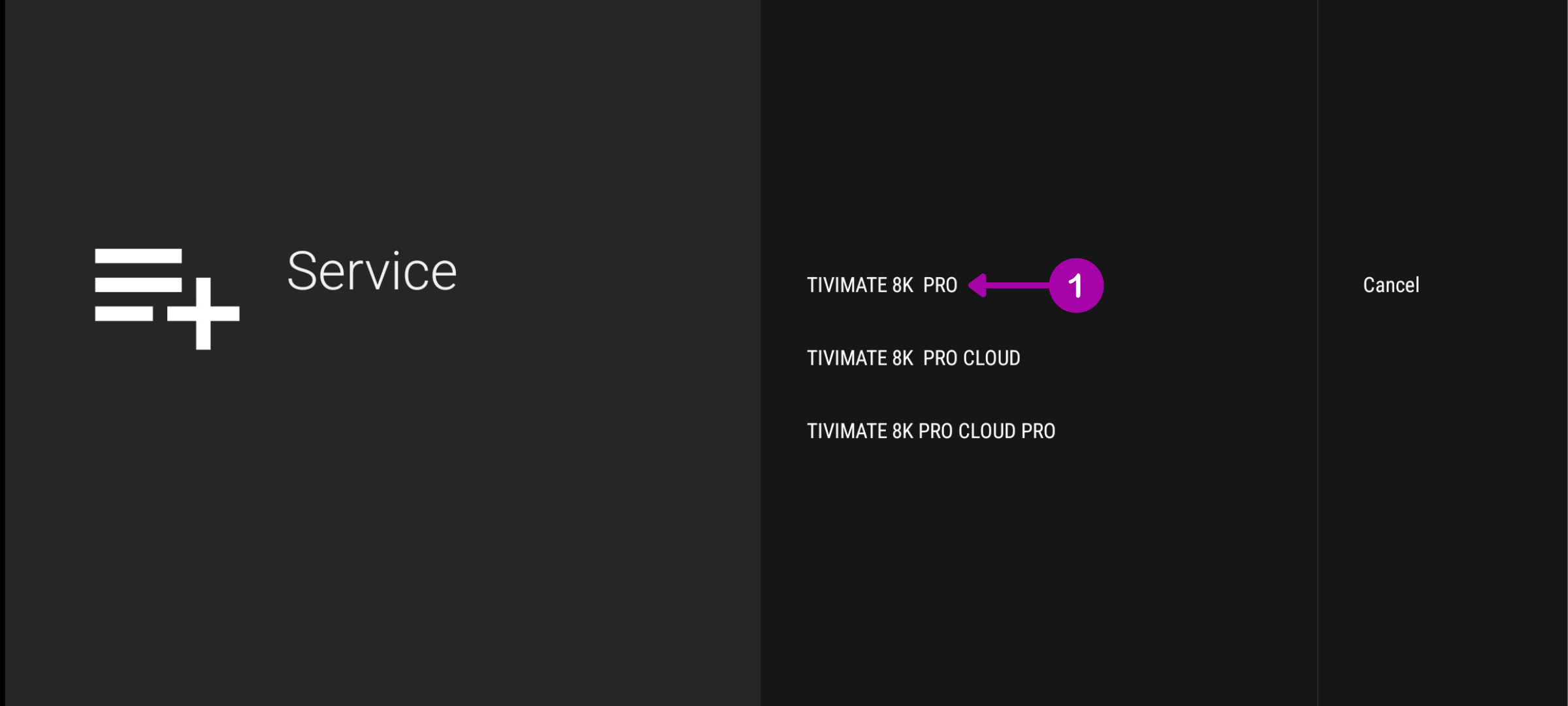
1. Launch the App
From your home screen, open TiviMate 8K PRO, and select TiviMate 8K PRO
 2. Enter Your Credentials
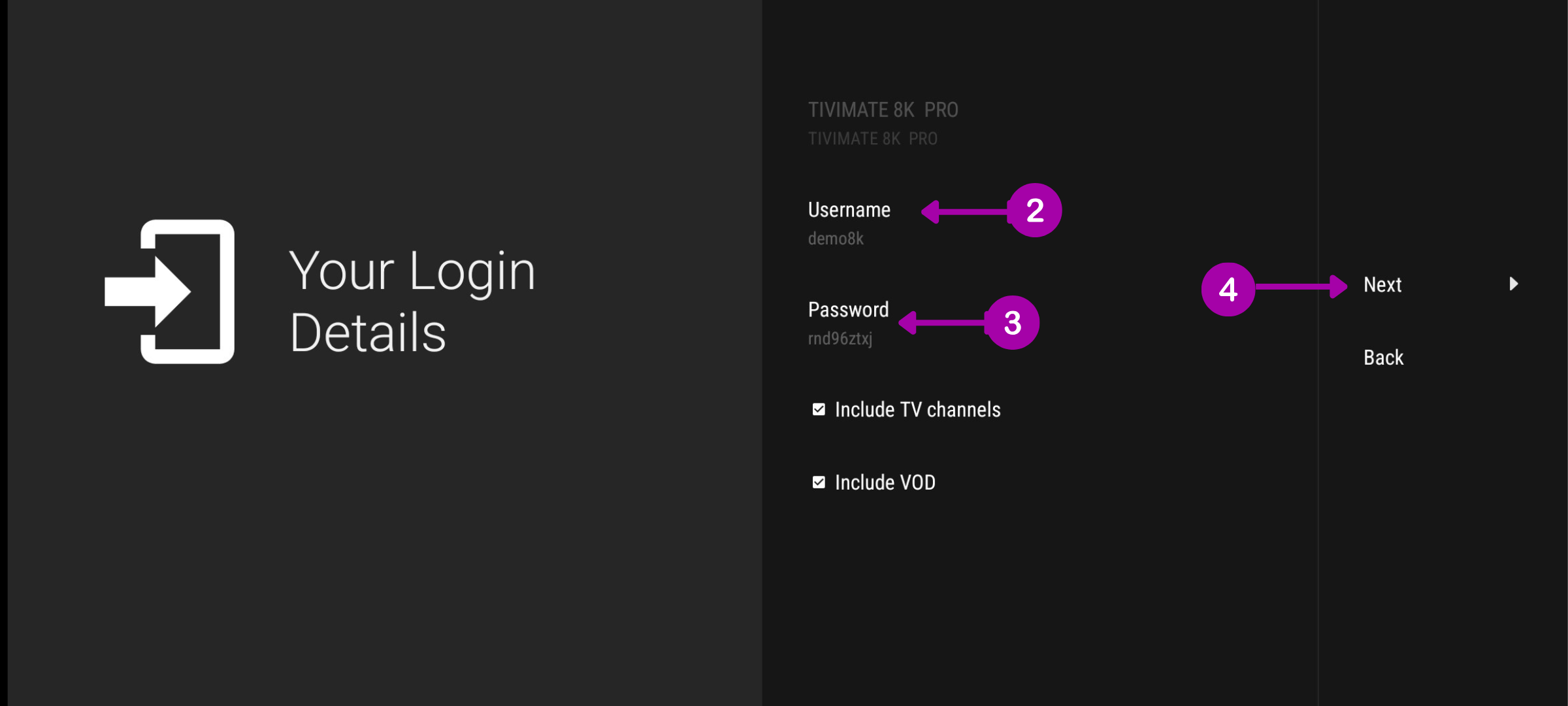
    • Enter your username and password.
    • Keep the “Include VOD” checkbox selected if you want access to movies and series.
      If you only want live TV channels, uncheck this box.

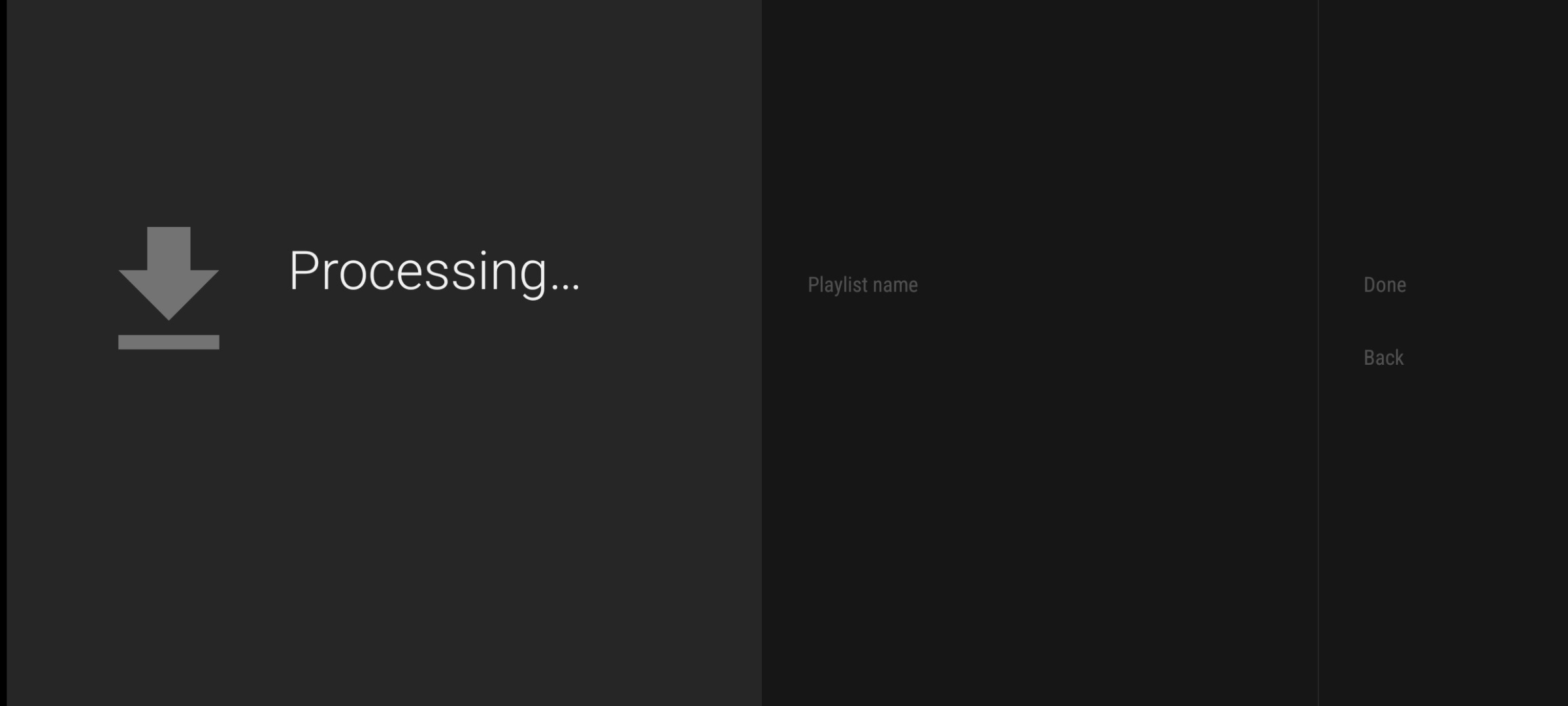
3. Wait for Processing

    • You’ll see a “Processing…” message — this means the connection is working.
    • If you get an error, double-check your username and password.
      If they’re correct, fully close the app and restart from Step 1.

4. Verify Server Connection
Once connected, the app will show:
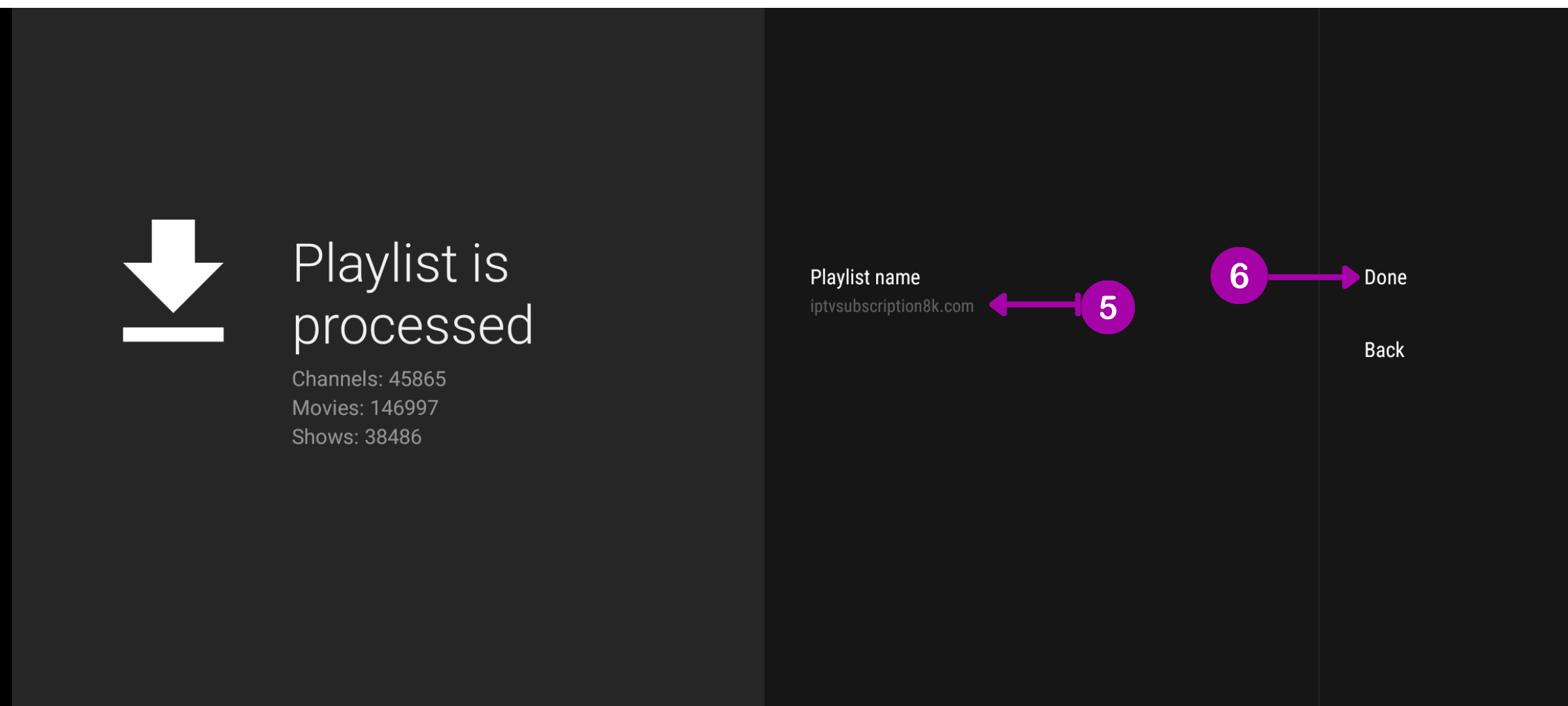
    • Total number of channels, movies, and series.
    • (Optional) You may rename your playlist at this stage.

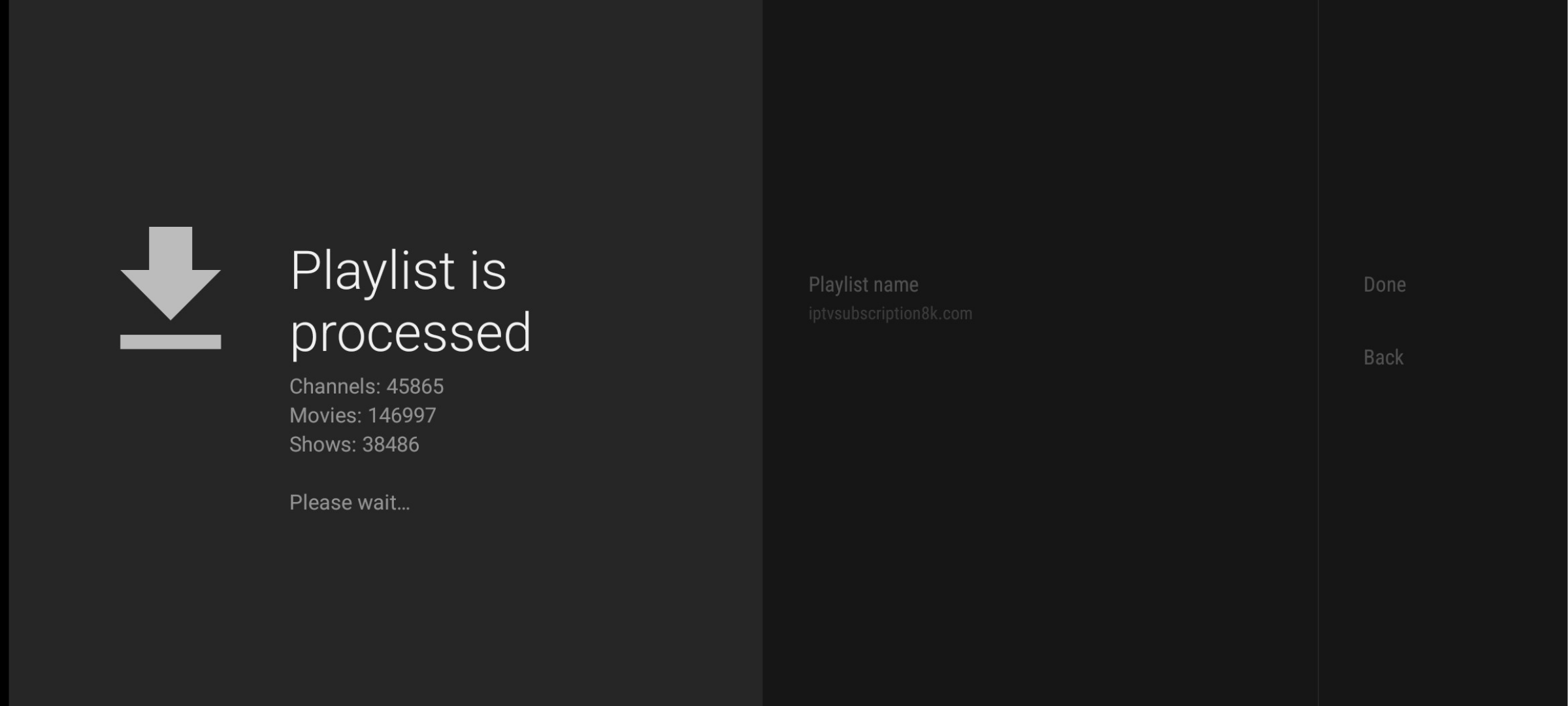
5. Download Playlist Data
The app will now download data from the server.
This may take several minutes, depending on your internet speed and playlist size.
6. Access Your Content
After the download finishes, you’ll be taken to the channel list.
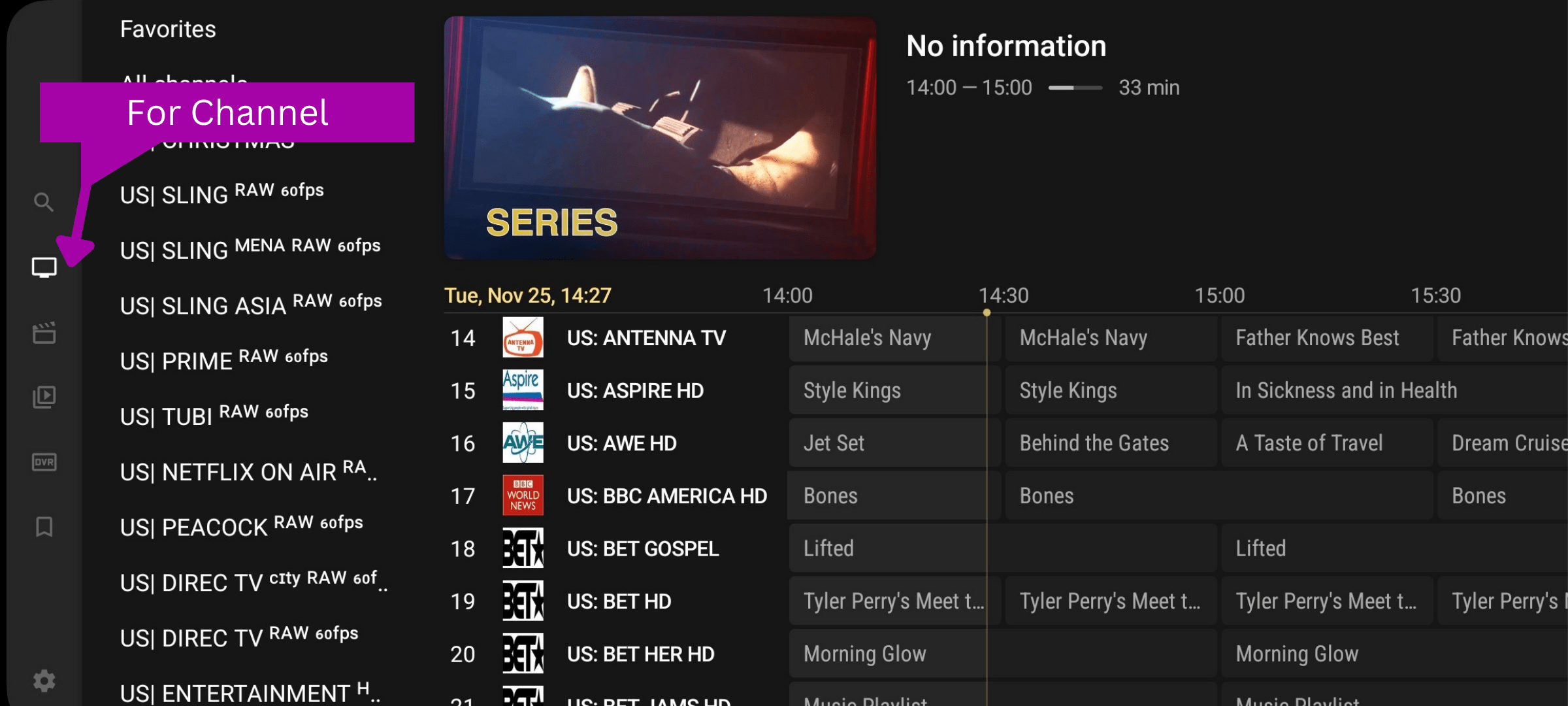
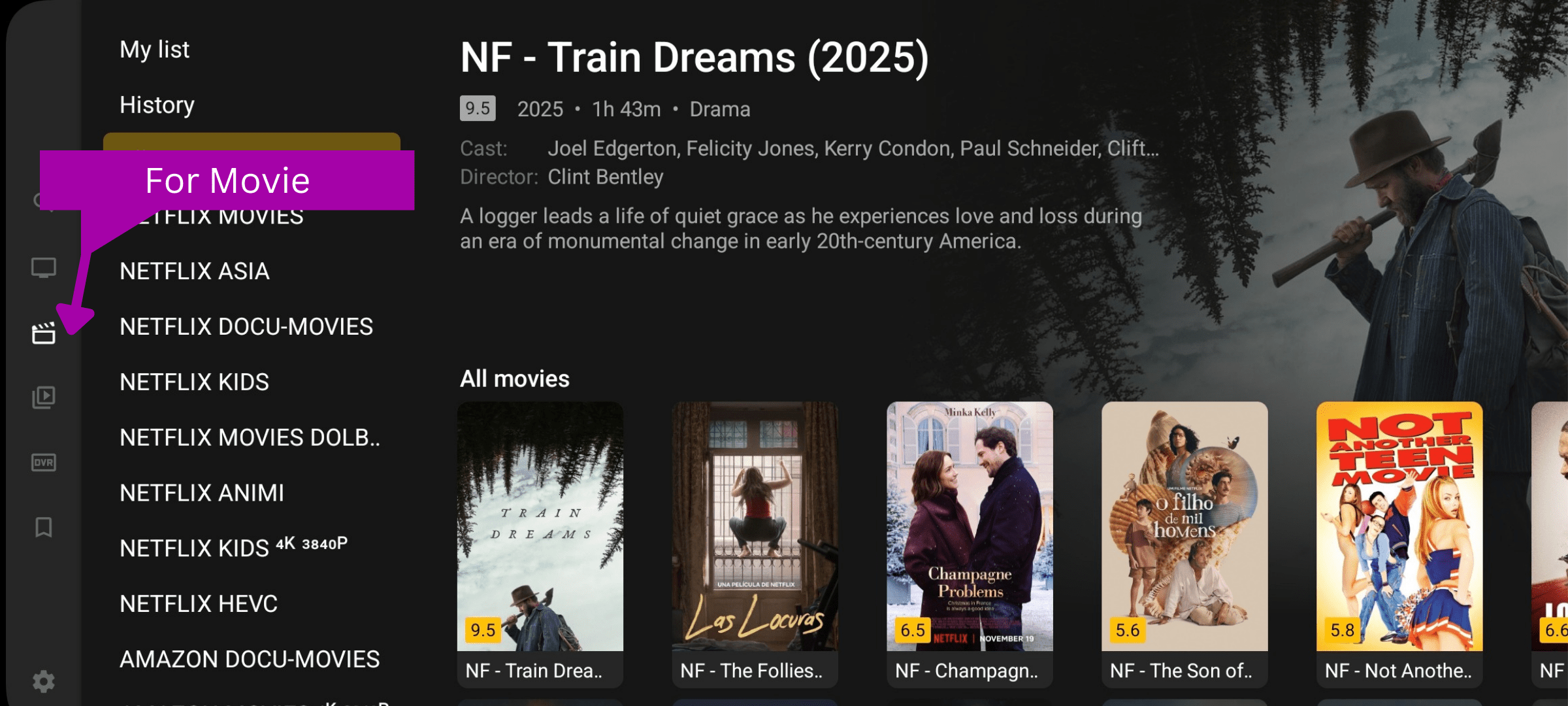
    • Tap any channel to watch live TV.
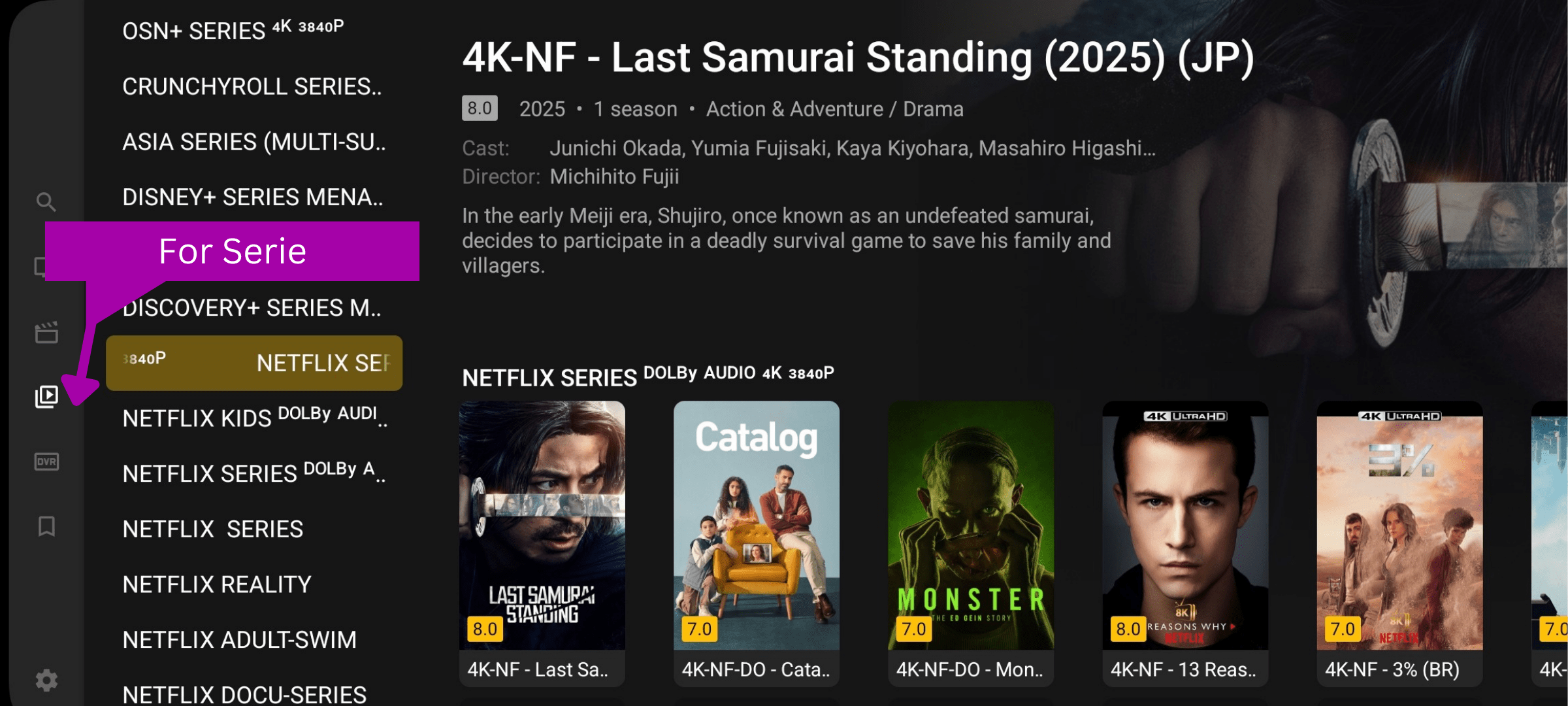
    • Go to Movies or Series sections for on-demand content.

 Customize Your Playlist (Recommanded)
⚠️ Before optimizing, please contact our support team with a list of the content you do NOT want (e.g., specific channels, languages, or VOD categories).

    • We will remotely clean your playlist on the server side to include only what you actually watch.
    • This ensures the best performance and avoids unnecessary data usage.

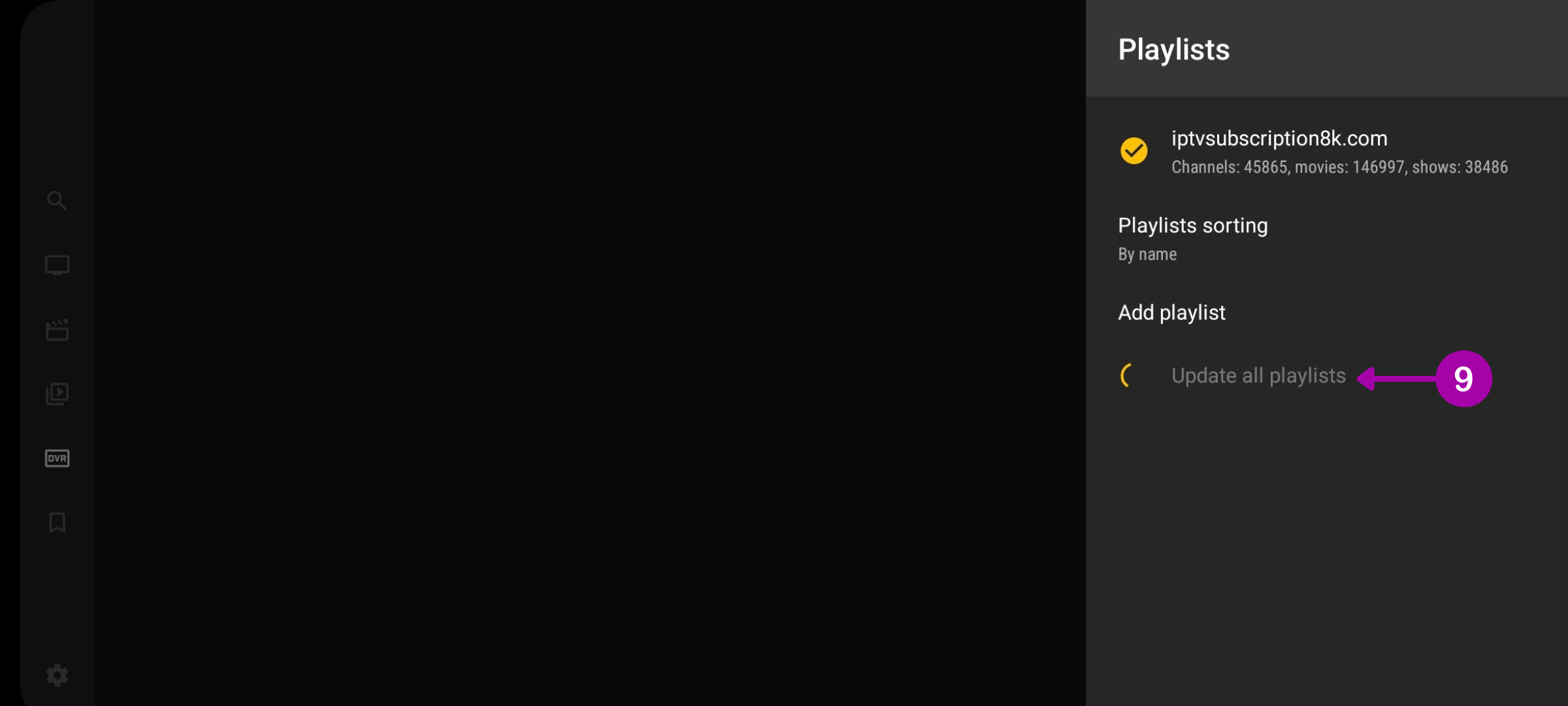
7. Update Your Playlist
After we’ve customized it for you:
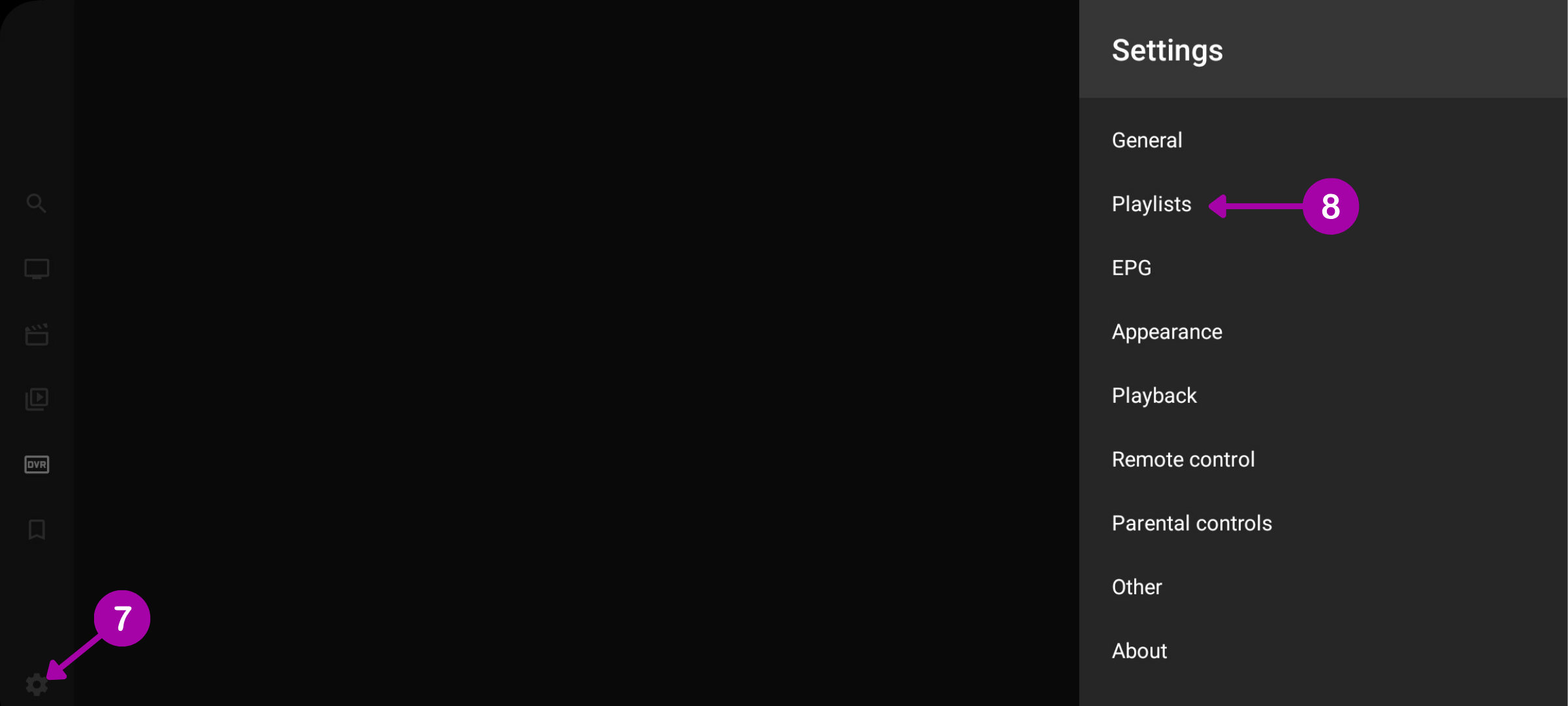
  • Go to SettingsPlaylists.

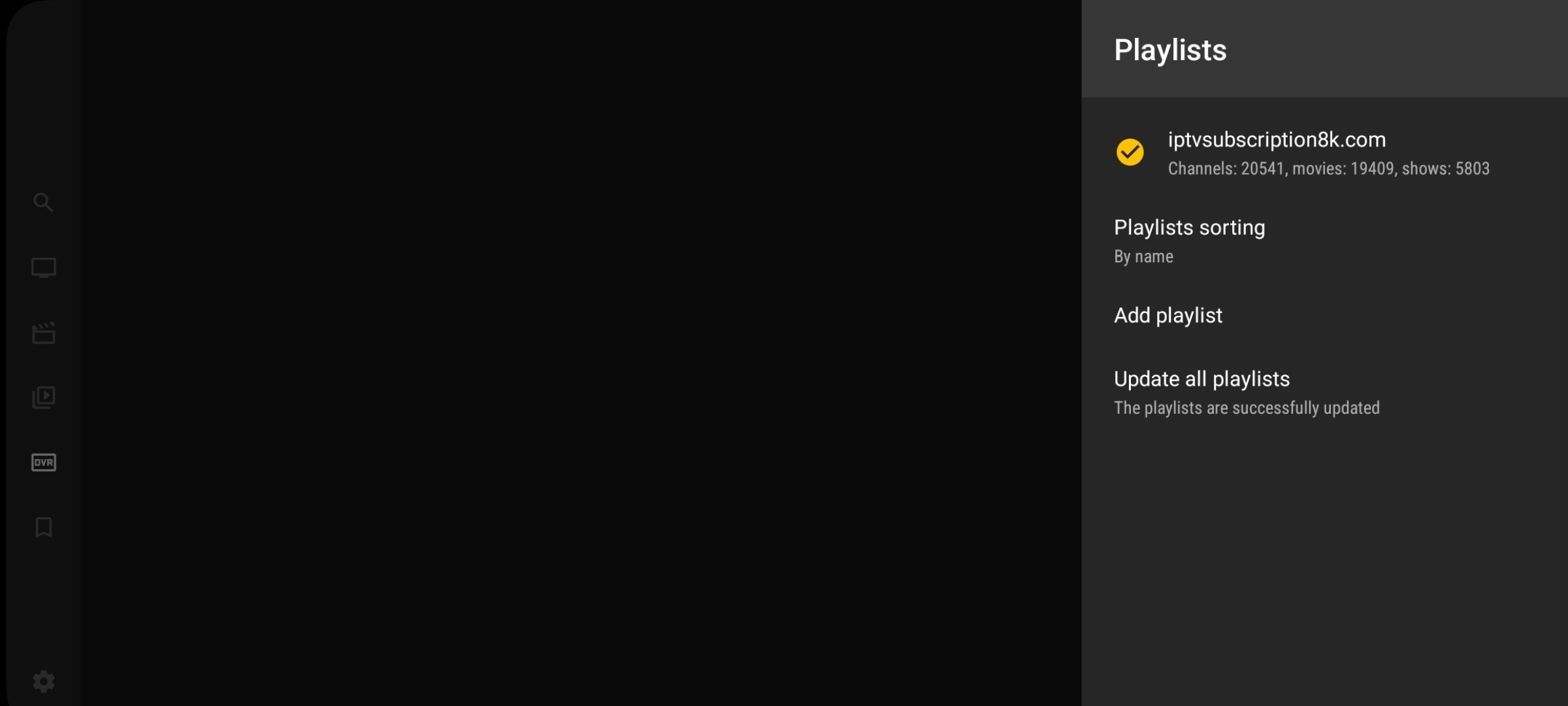
  • Tap “Update All Playlists”.
    Initially, the playlist may contain 44,000+ channels and 180,000+ movies/series — but after our cleanup, it will be much smaller and faster.
  • The updated numbers will reflect only your selected content

8. Enjoy a Faster, Cleaner Experience
With a streamlined playlist, your app will load quicker, use less memory, and be easier to navigate.
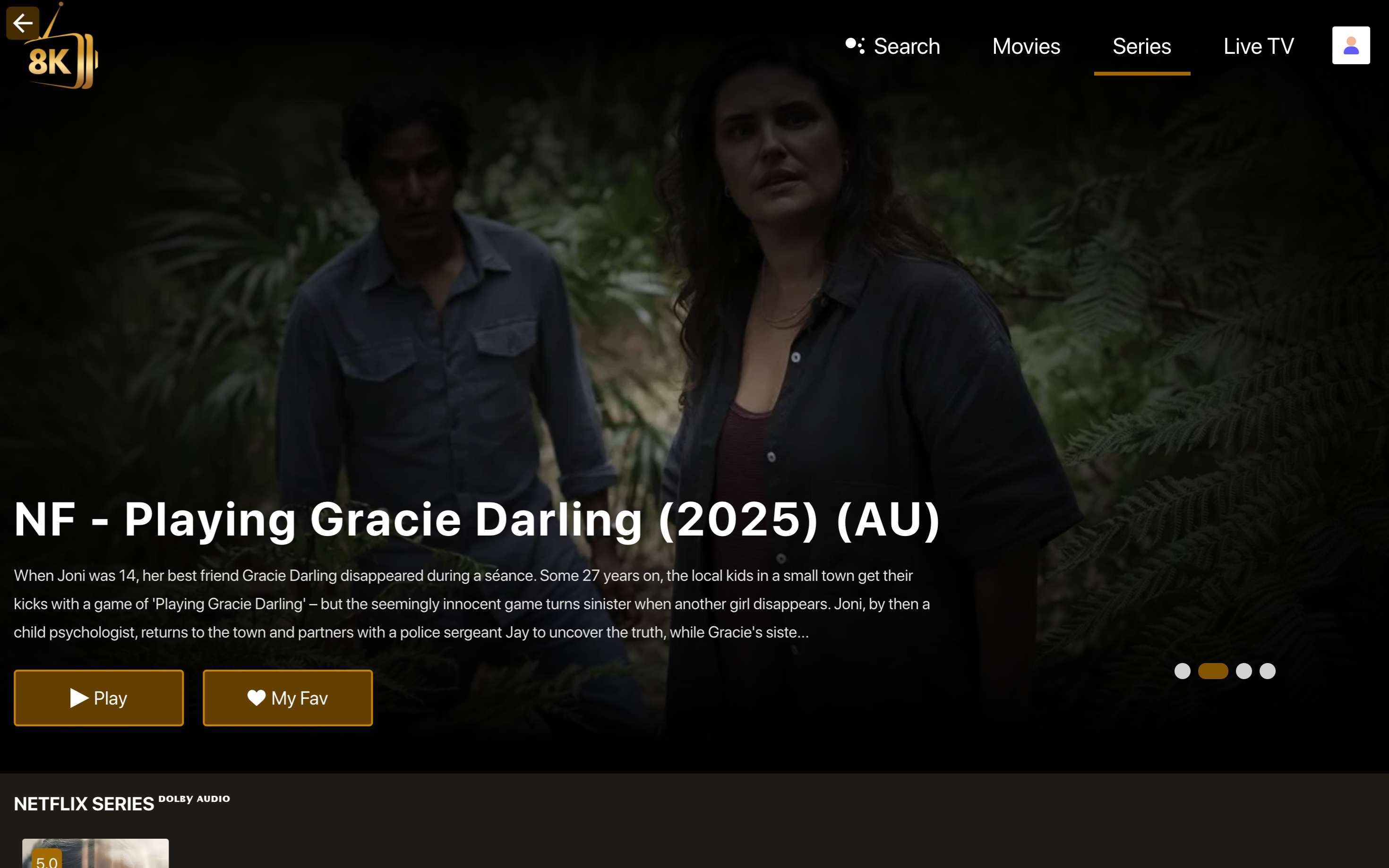
How To Setup 8k Player Vip +

1. Launch the App
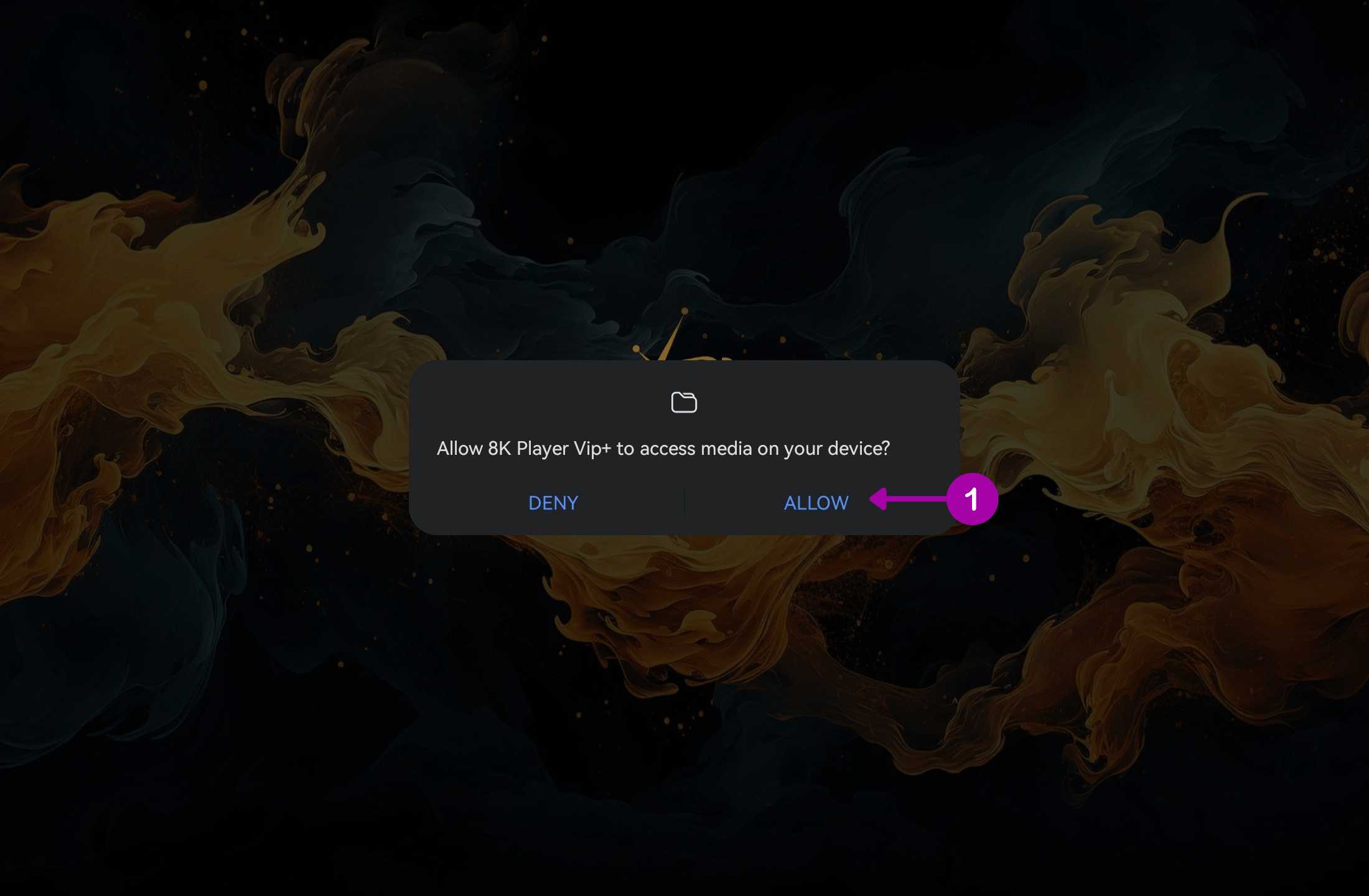
From your home screen, open 8K Player VIP+.
→ If a pop-up appears asking for media access permissions, please Allow it.
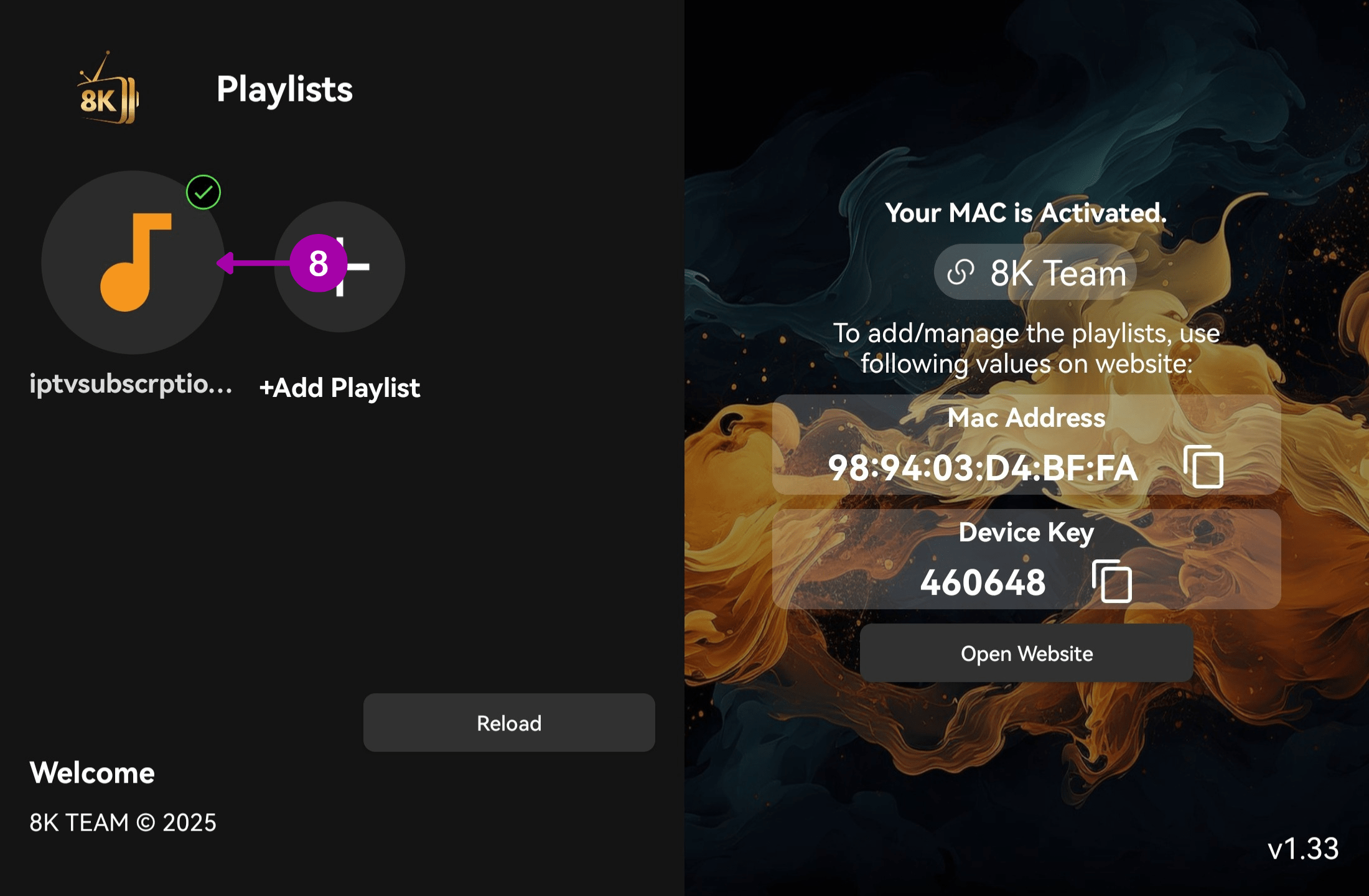
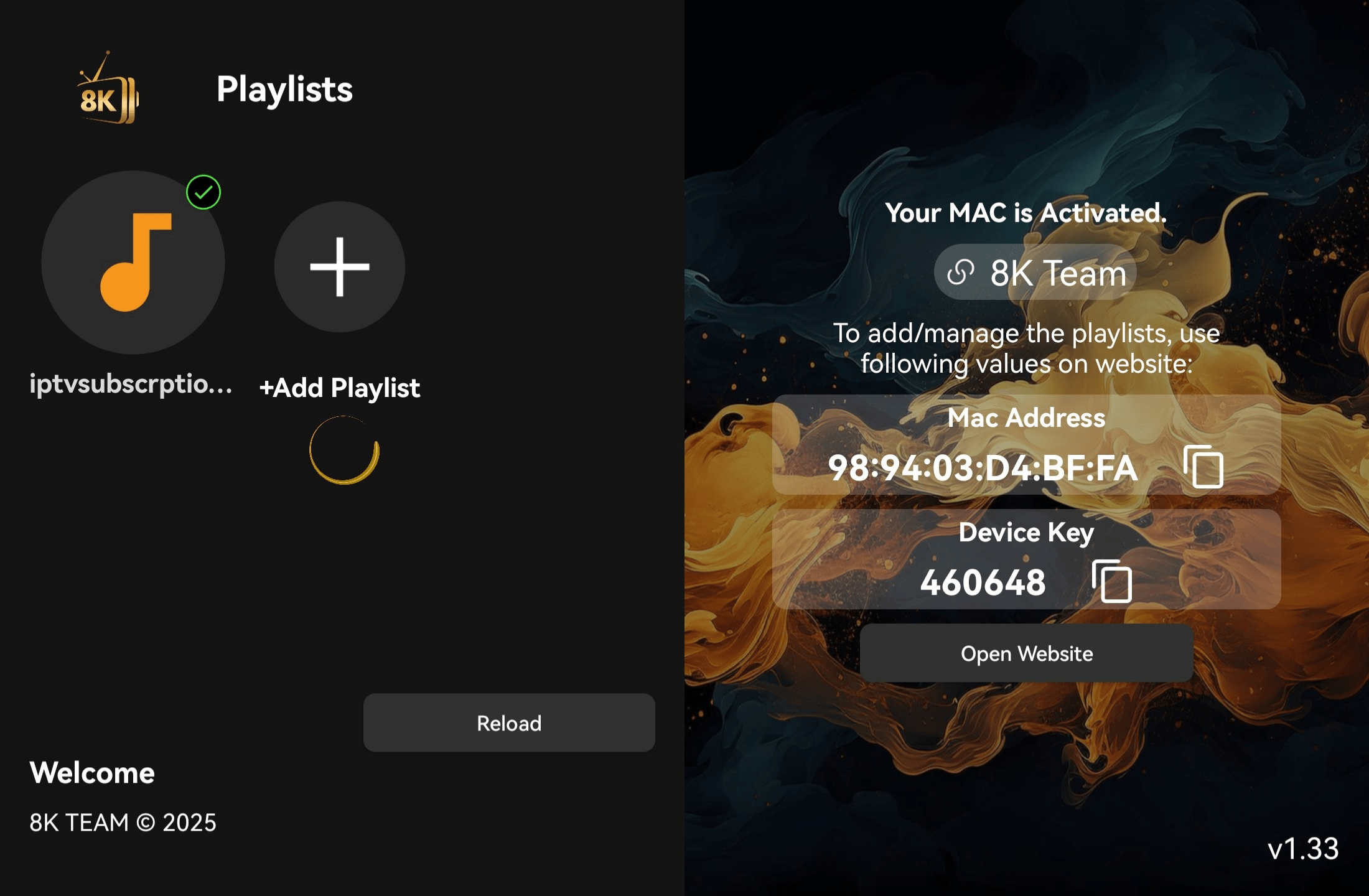
2.View Your Device MAC Address
On the welcome screen, you’ll see your device’s MAC address.
→ Our support team can use this to upload your playlist remotely.
Alternatively, you can set it up yourself instantly by tapping “Continue”.
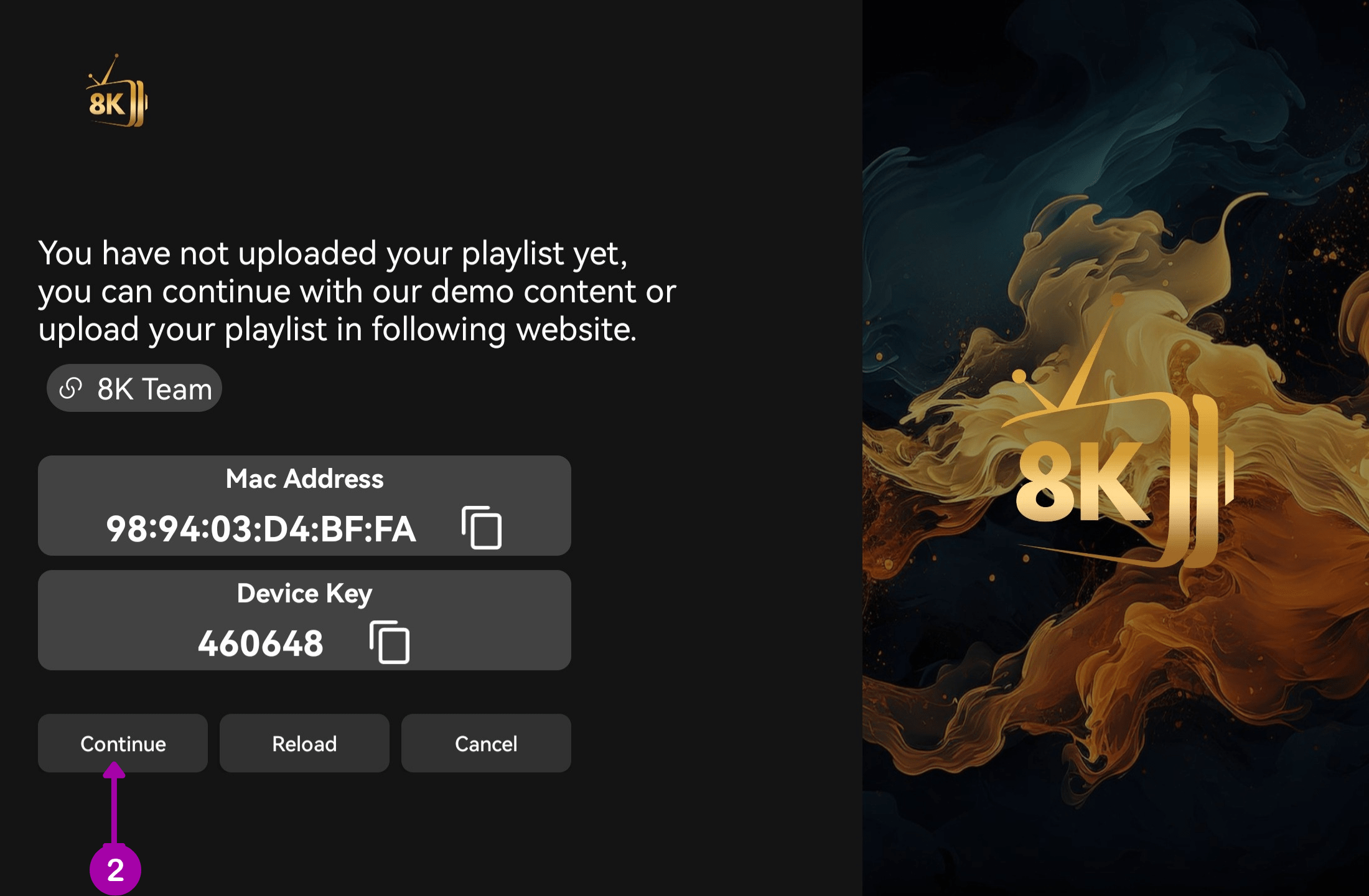
3. Add Your Playlist
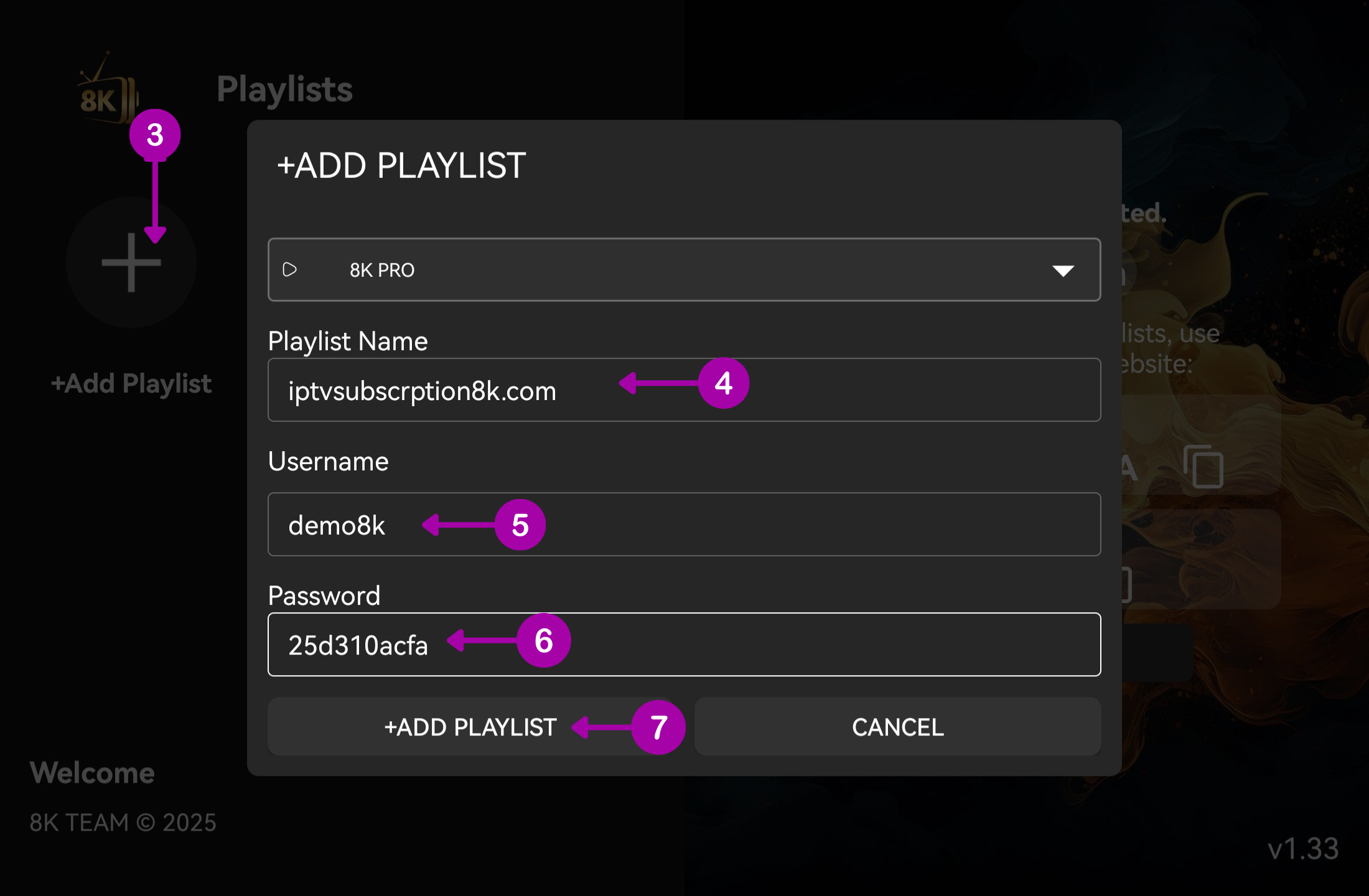
    • Tap “Add Playlist”.
    • Fill in the following fields:
      • Playlist Name: You can enter our website name (e.g., “iptvsubscription8k.com”).
      • Username: The username provided to you by our team.
      • Password: The password sent to you via email or support.
       
    • Tap +ADD PLAYLIST or Submit.

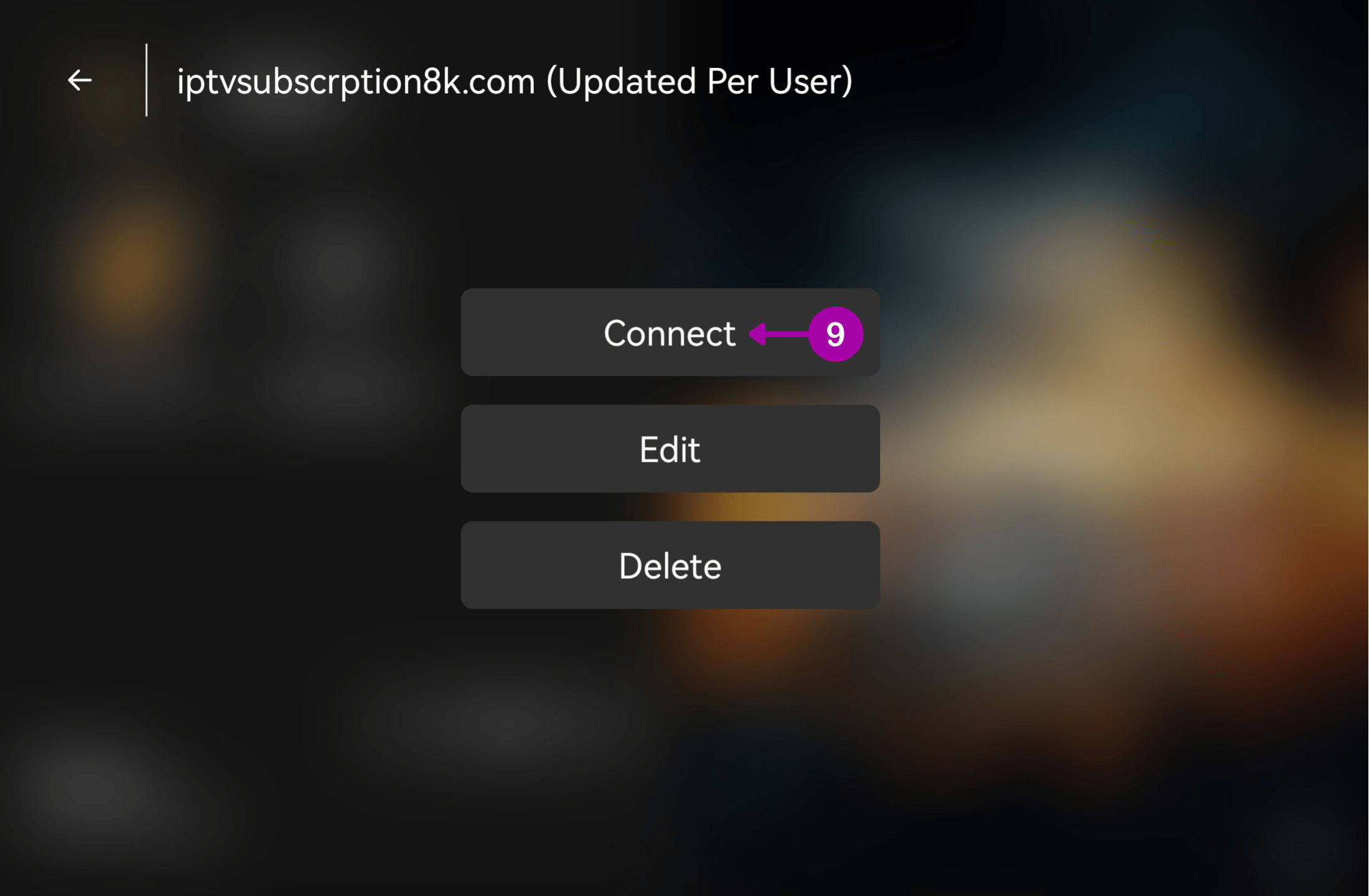
4. Connect to Your Playlist

    • Once added, tap the playlist you just created.

  • Then tap “Connect”.

  • You’ll see a “Loading…” message—this means your playlist is being fetched from the server.

5. Access Your Content
When loading is complete, you’ll be taken to the home screen, which displays the latest movies added to the server.
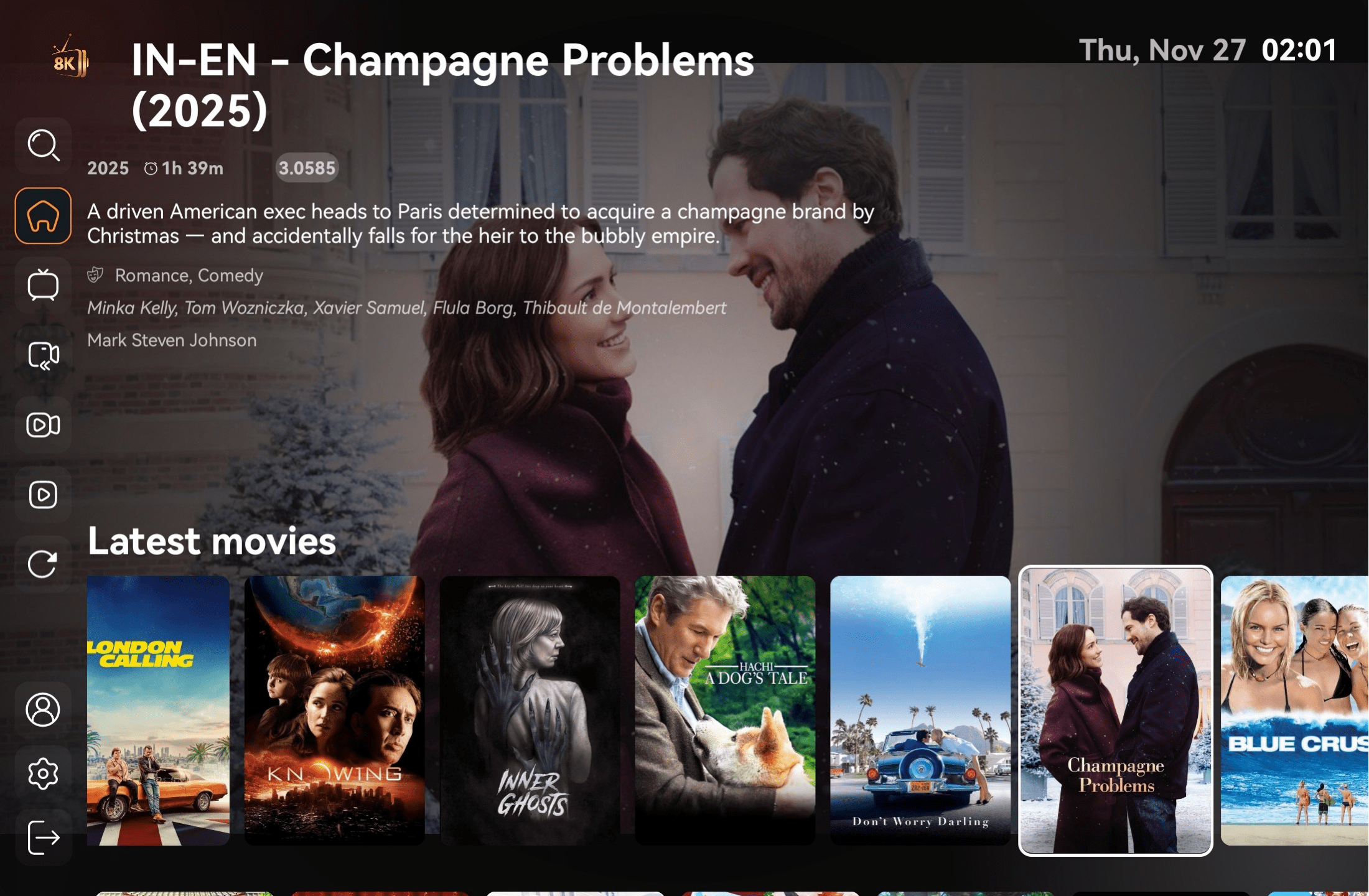
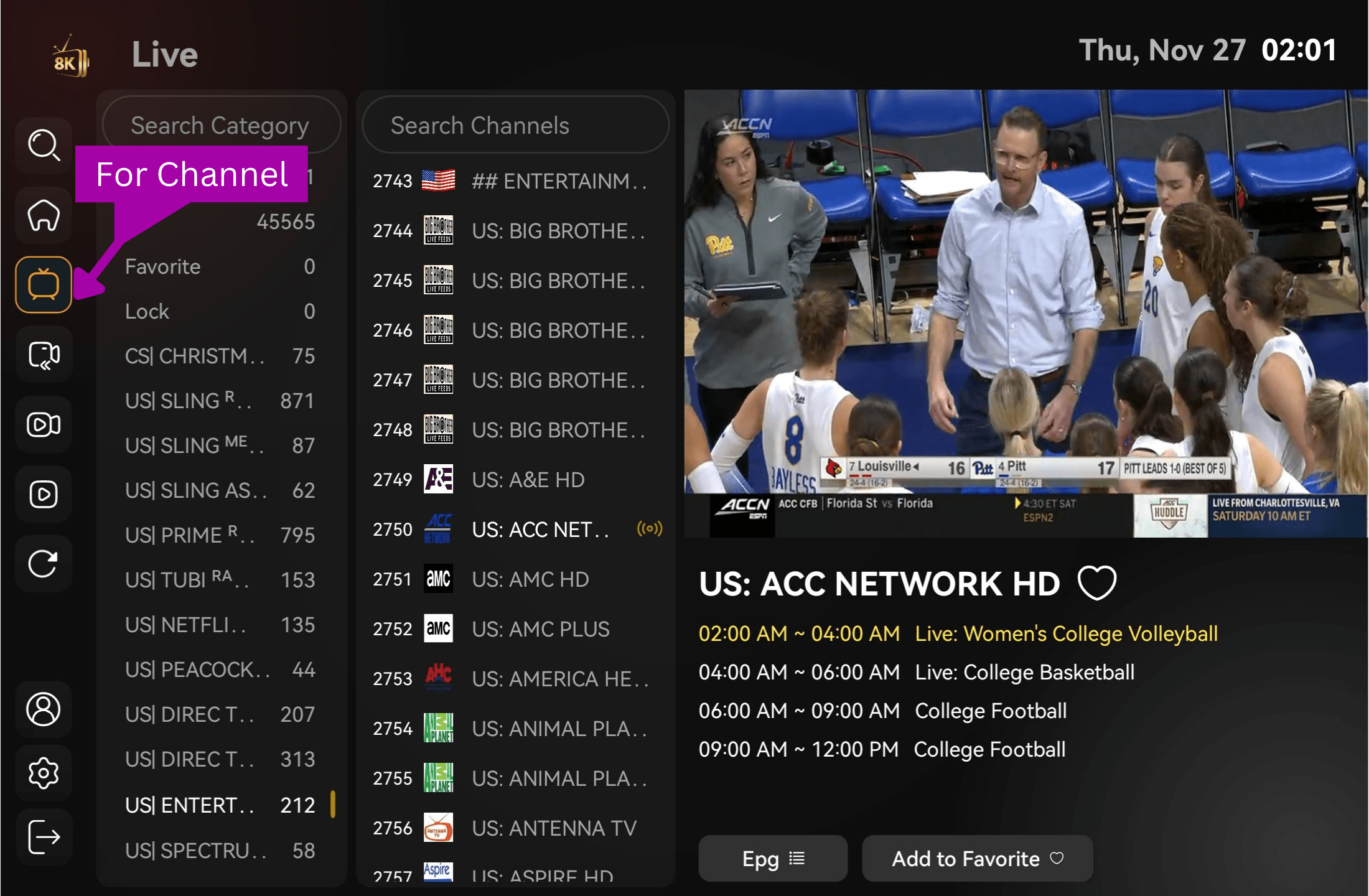
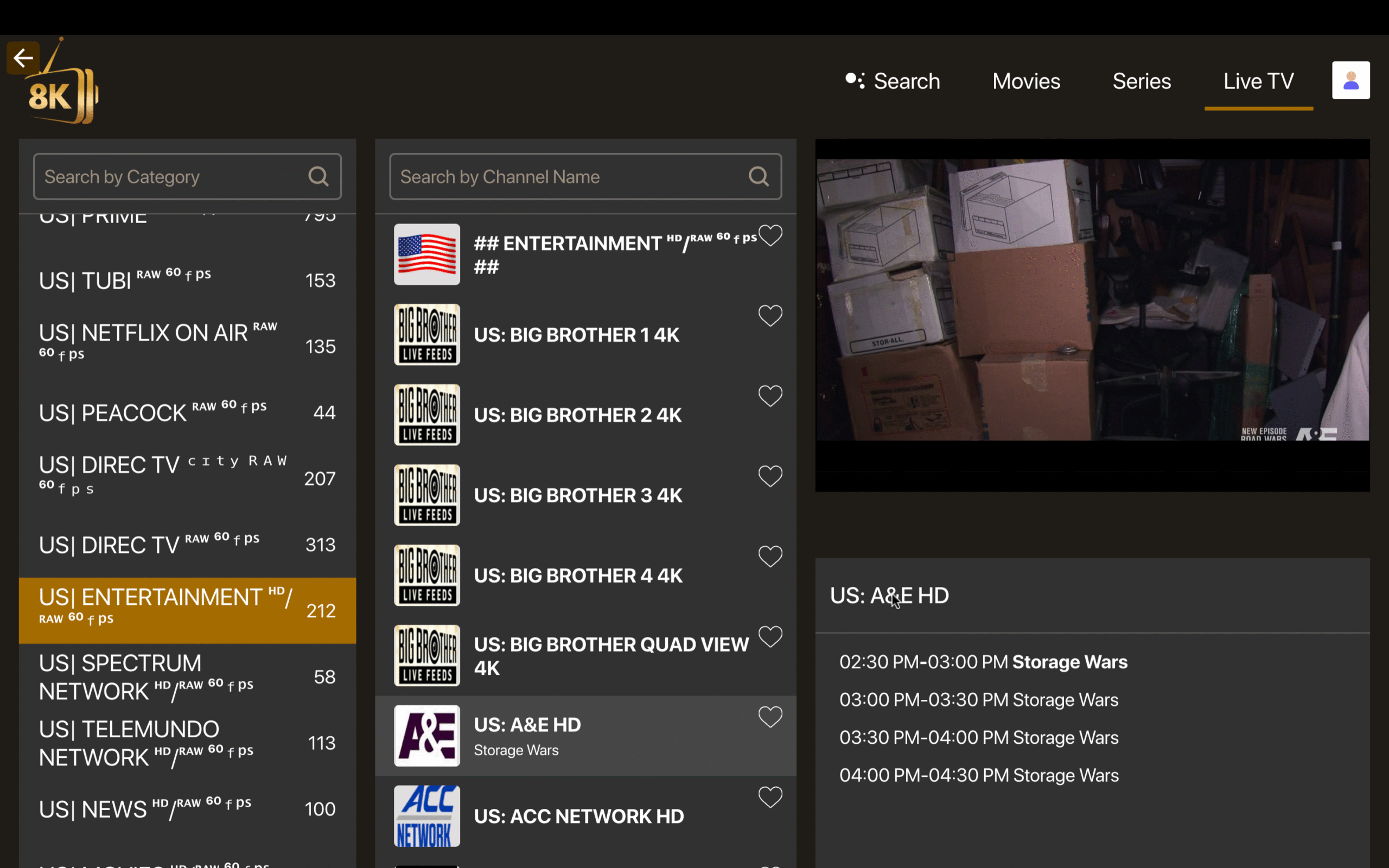
  • Watch Live TV: Tap the Live TV icons on the home screen.

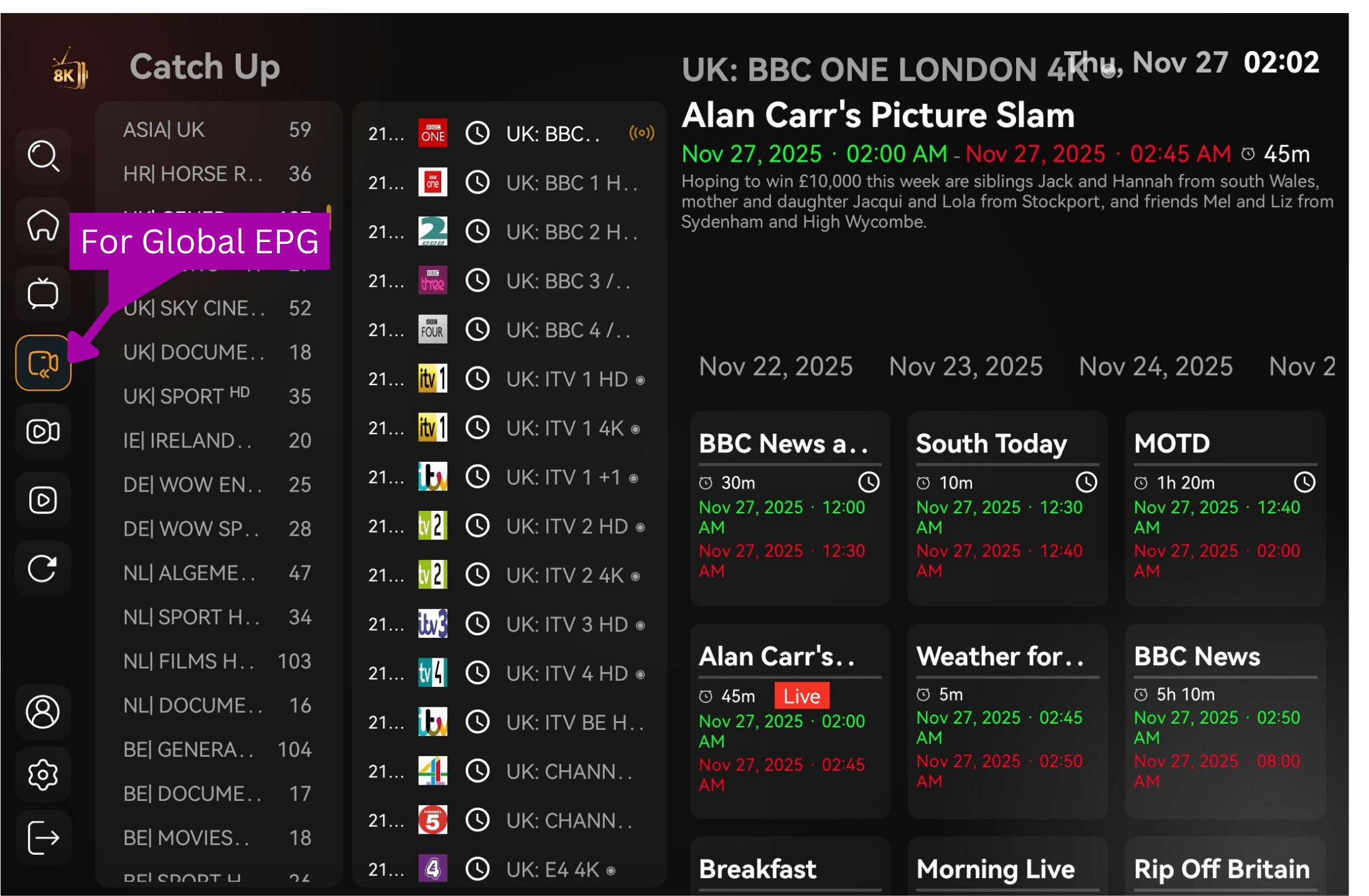
  • A global EPG is available for select channels.
  • Additionally, each channel has its own detailed EPG for easy scheduling.

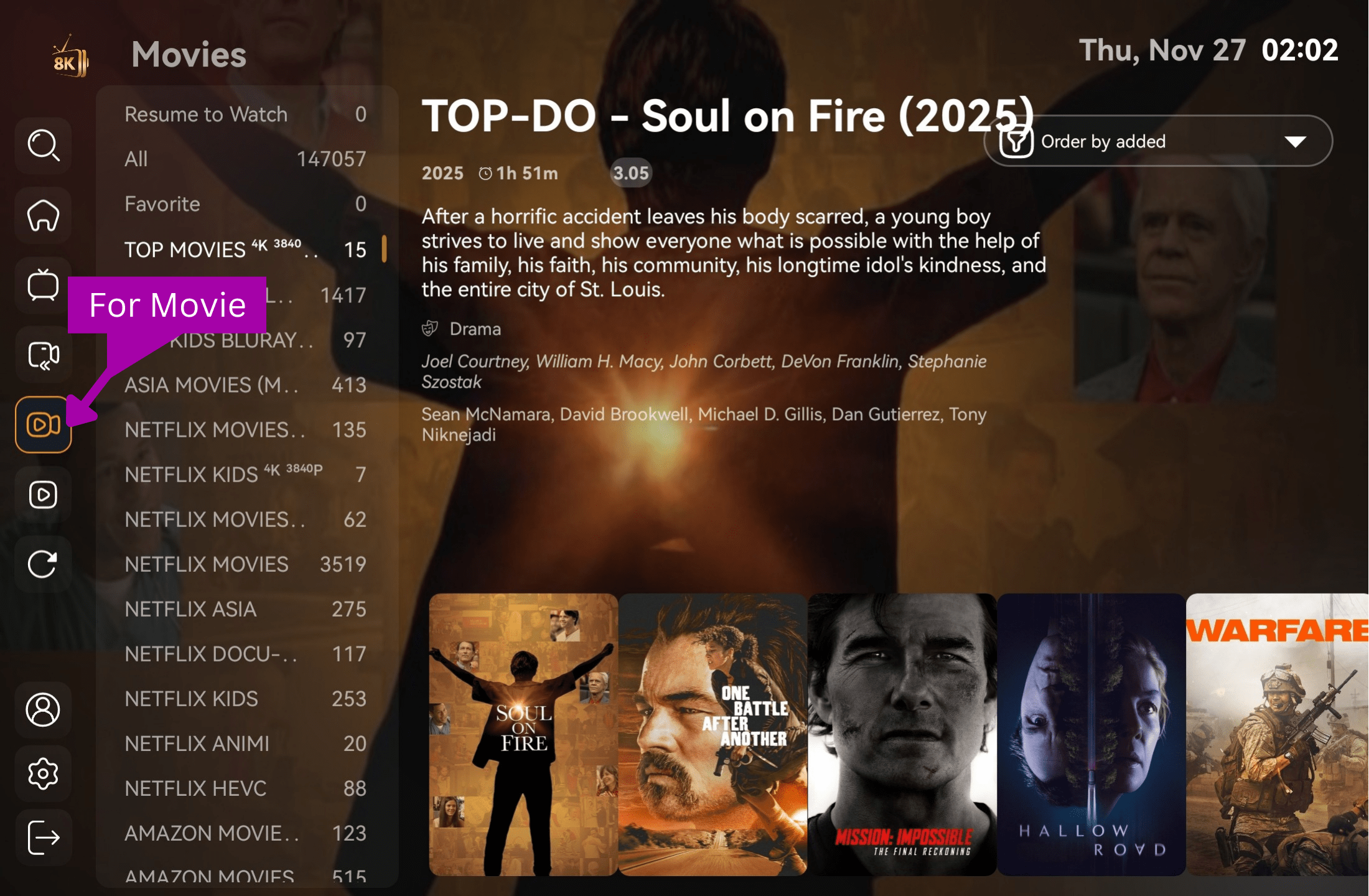
  • Watch Movies: Tap the Movies icons.

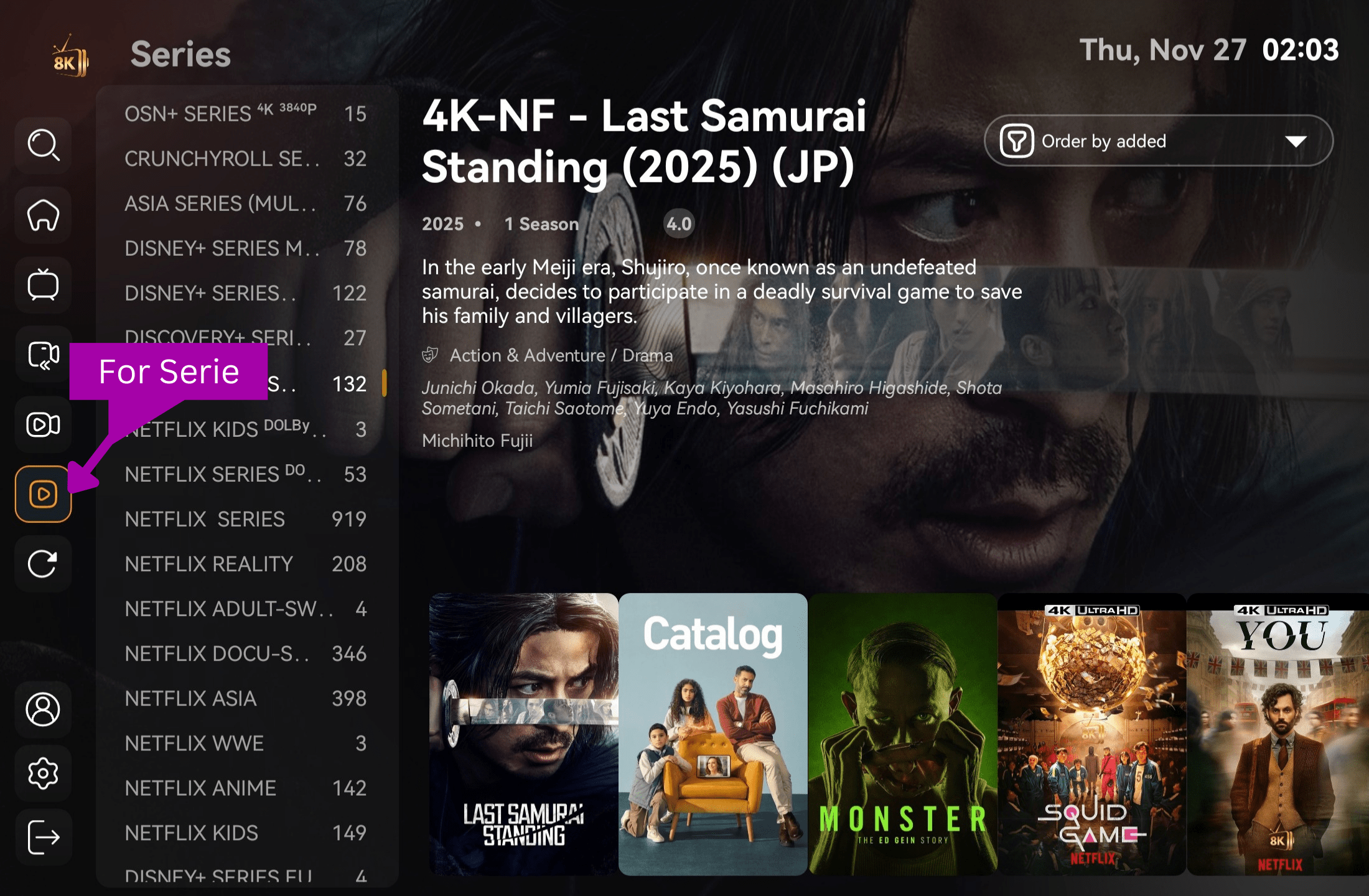
  • Watch Series: Tap the Series icons.


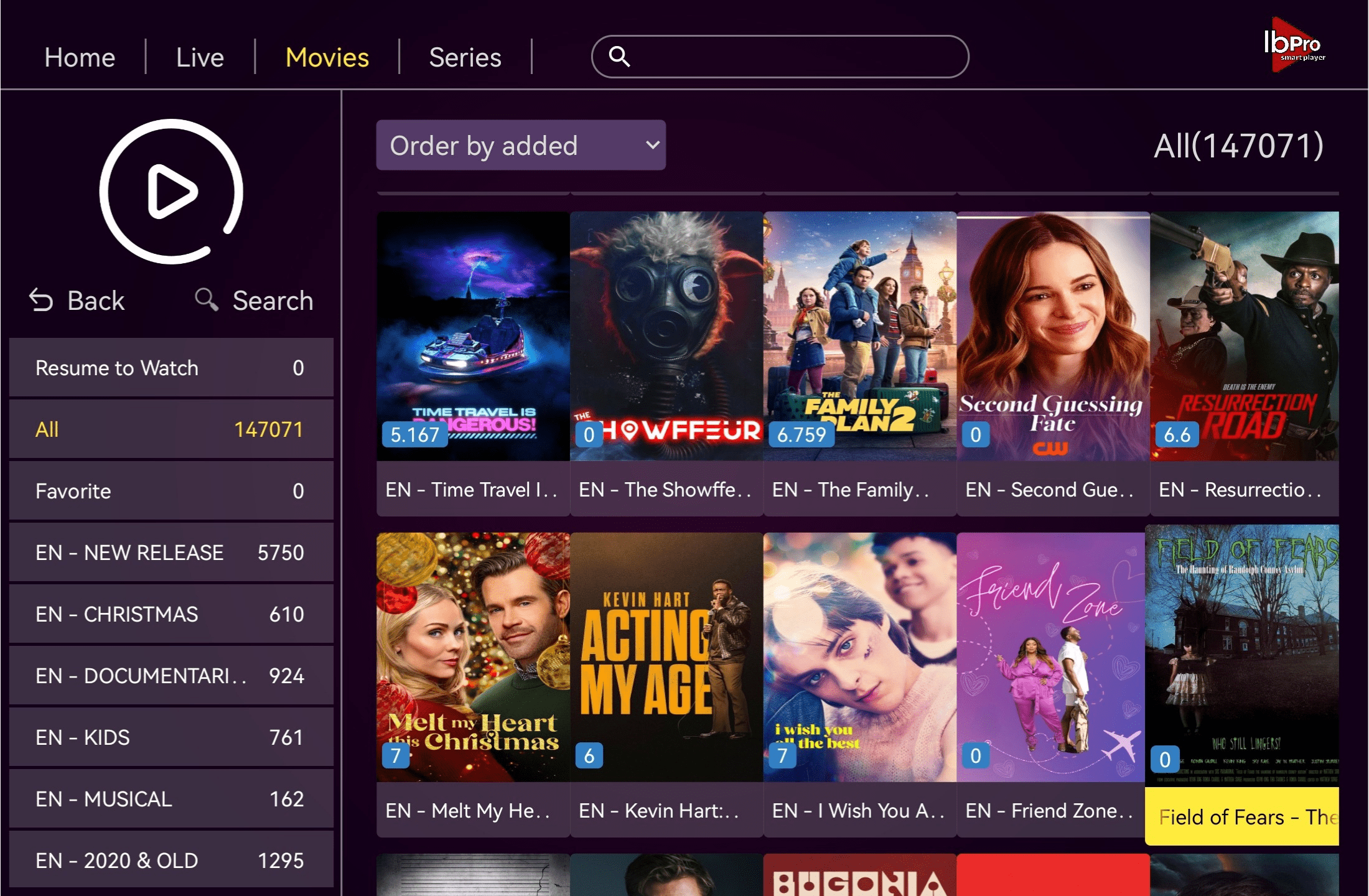
How To Setup Ibo Player Pro

1. Launch the App
From your home screen, open Ibo Pro Smart Player.
Take note of your device’s MAC address and activation key, which are displayed in the app.
→ You can now close the app.
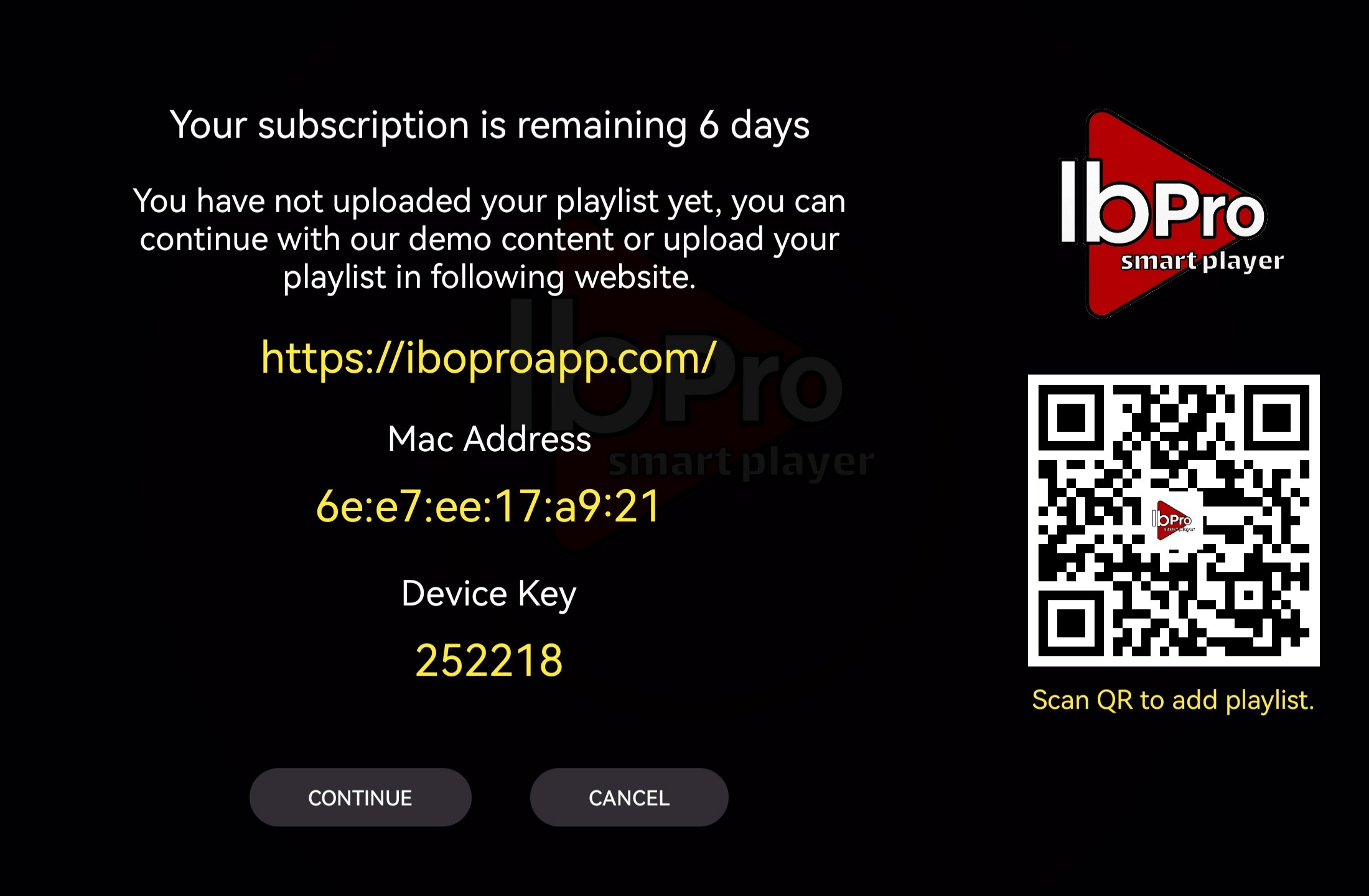
2. Access the Web Portal
On a computer or phone browser, go to:
🔗 https://iboproapp.com/manage-playlists
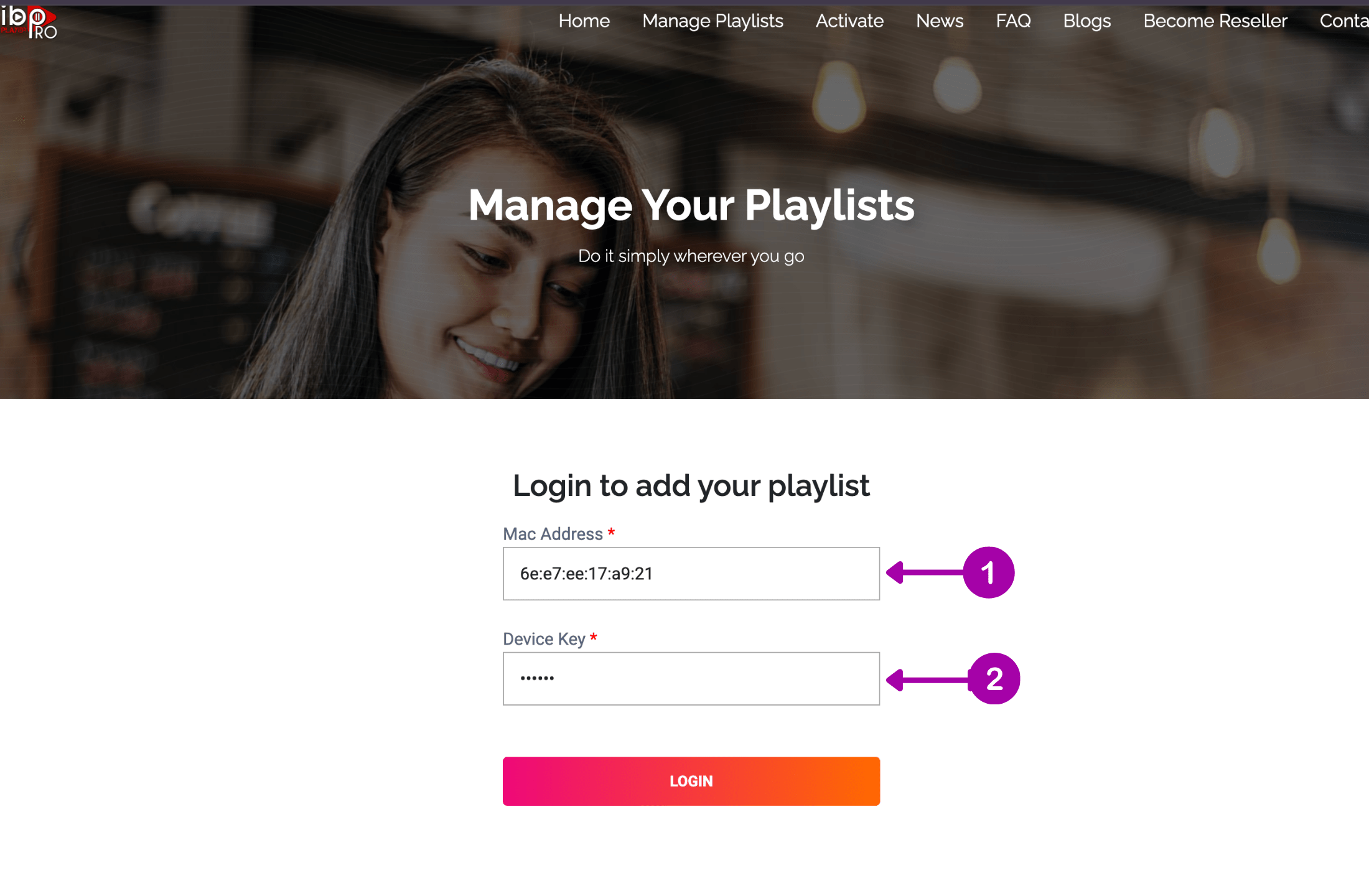
    • Click “Manage Playlists”.
    • Enter the MAC address and activation key from the app to log in.

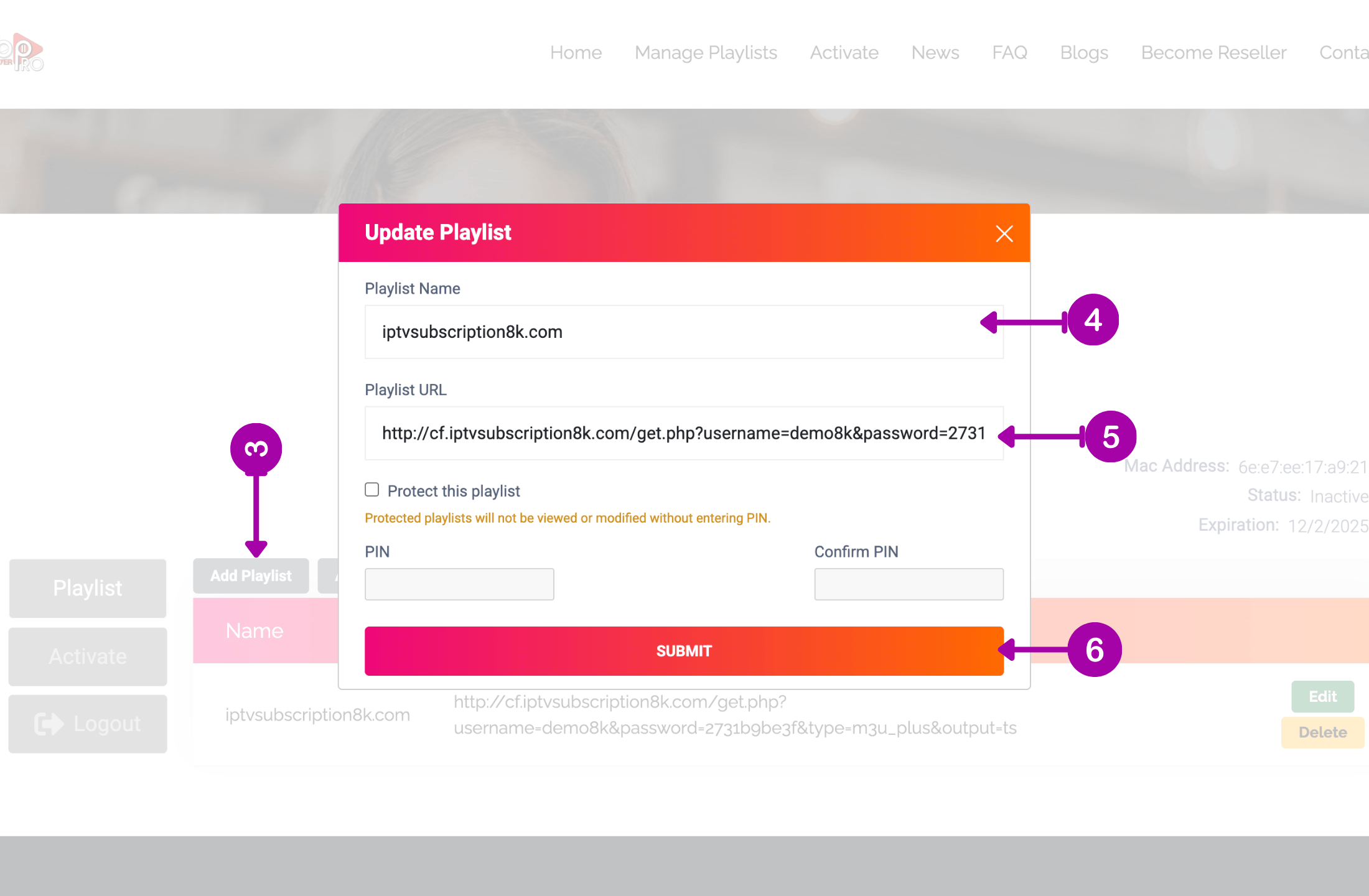
3. Add Your Playlist

    • Click “Add Playlist”.
    • Enter a playlist name (e.g., “iptvsubscription8k.com”).
    • Paste the M3U playlist URL provided by us.
    • Click Submit to save.

4. Restart the App

    • Reopen IbPro Smart Player on your device.
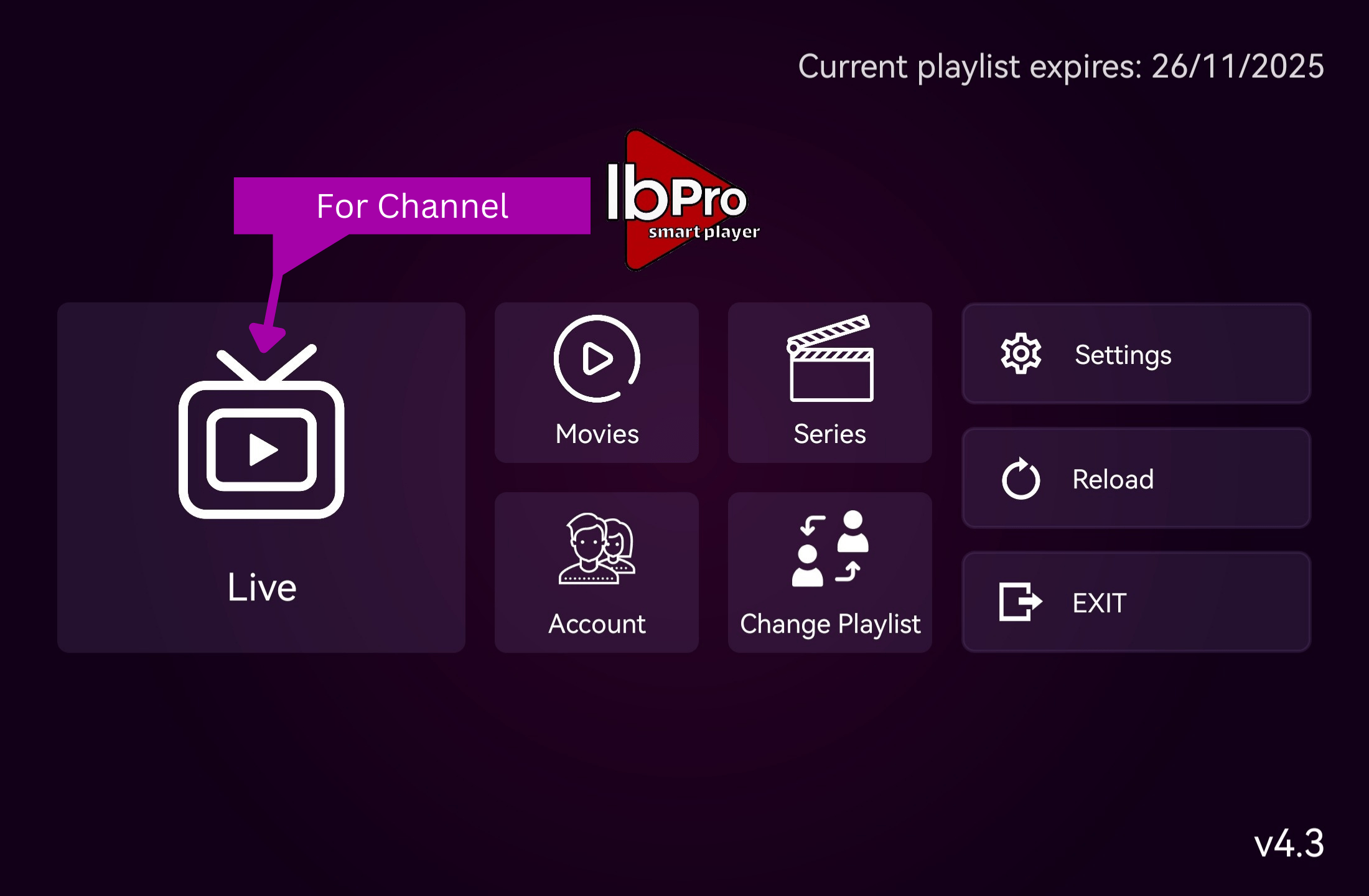
    • Tap “Continue” on the welcome screen.
    • The app will now load your configured playlist.
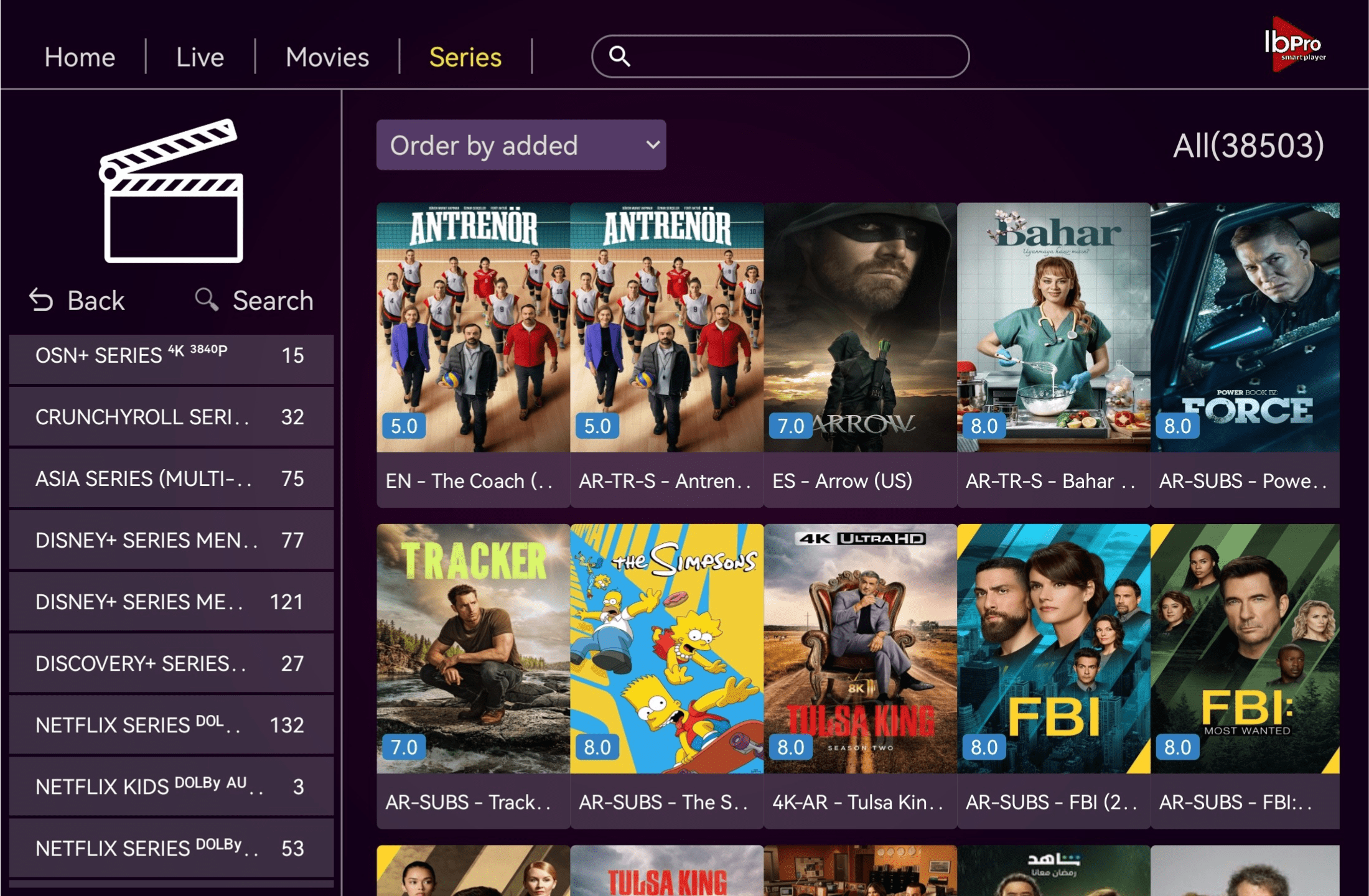
    • Start Watching
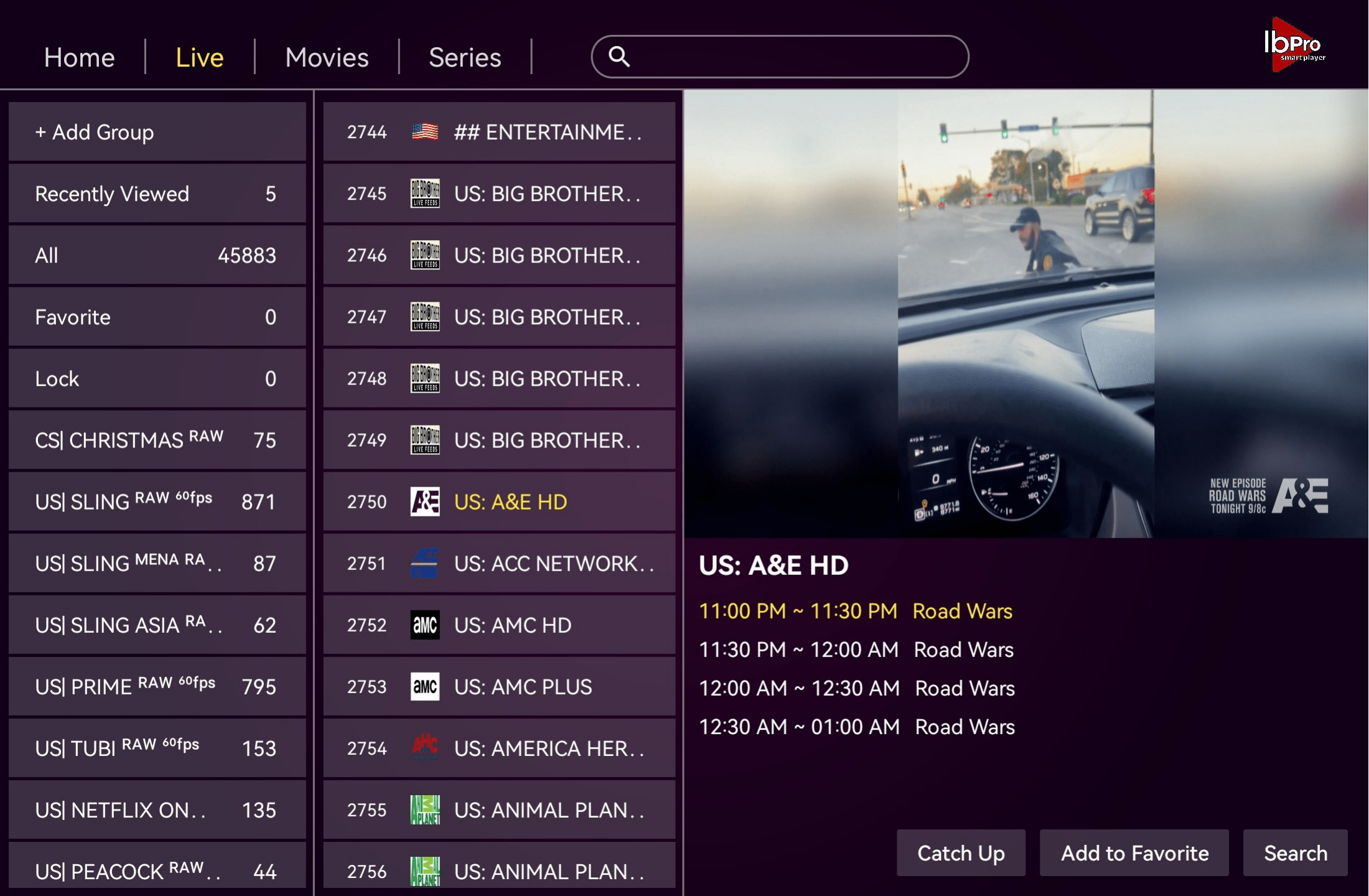
      • Live TV: Tap “Live” to browse and watch channels.

  • Movies: Tap “Movies” at the top to access on-demand films.

  • Series: Tap “Series” at the top to watch TV shows.

To Watch movie select Series in the top 
 

How To Setup 8k Player MacOS

1. Launch the App
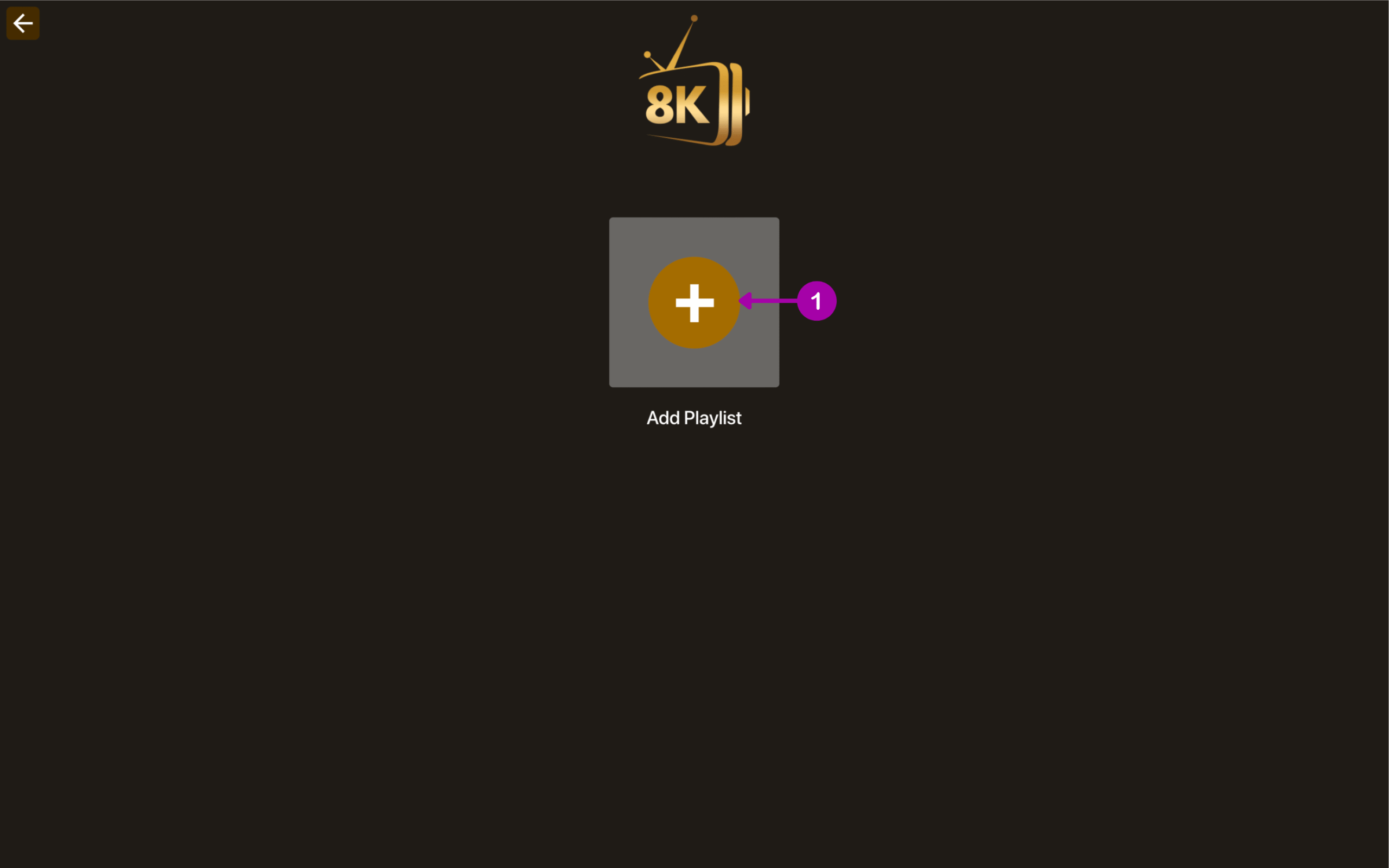
On your Mac, open 8K Player OS ,
and Click the “Add Playlist” button
2. Enter Your Credentials
Fill in the following fields in the app:

    • Playlist Name: e.g., iptvsubscription8K.com (you can choose any name you like).
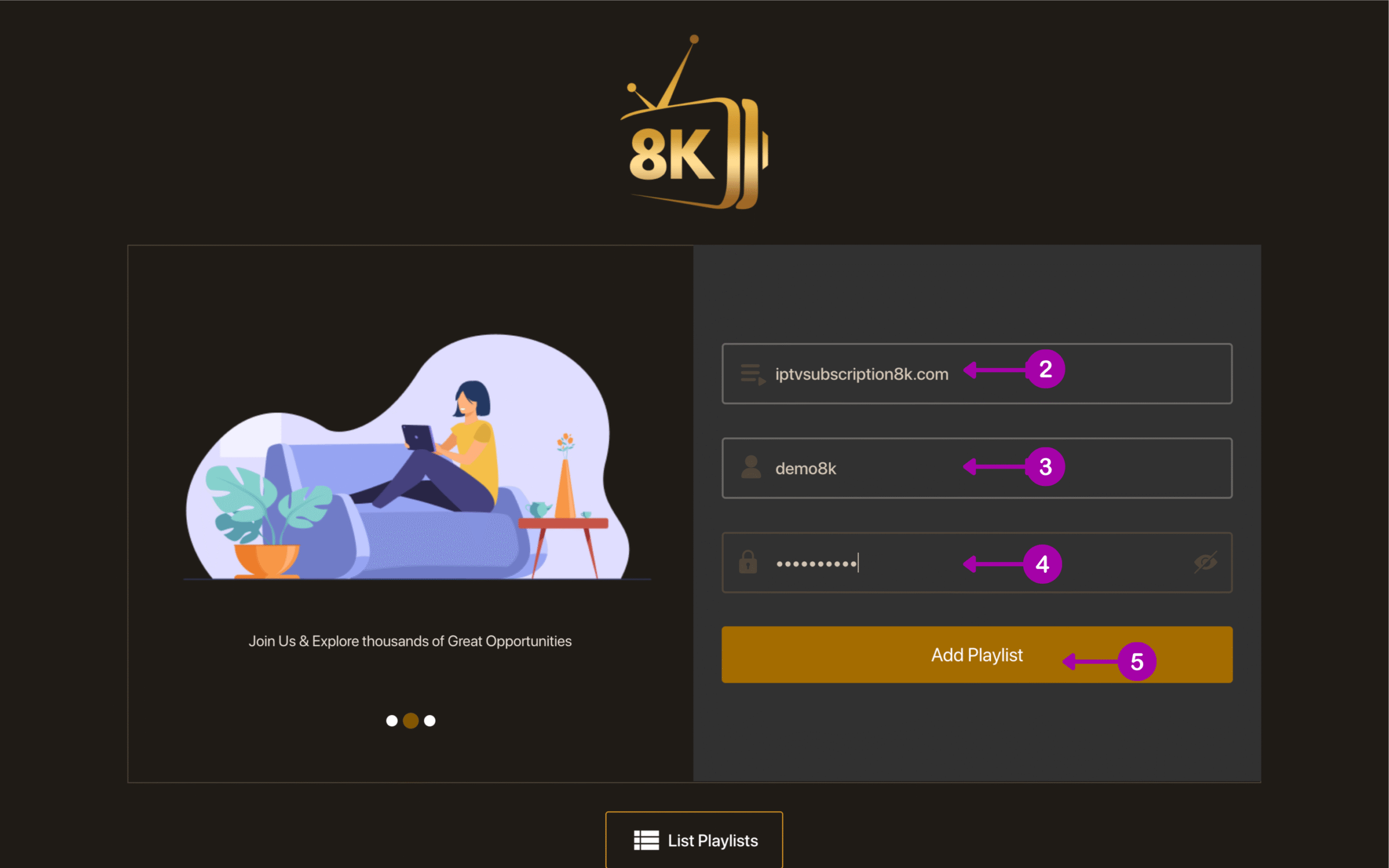
    • Username: The username provided to you by our team.
    • Password: The password sent to you via email or support.
    • Click “Add Playlist” to save your settings.

Wait for Connection
Within a few seconds, your playlist will connect successfully to our server.
→ You’ll now have full access to your IPTV content.

3. Start Watching
Navigate using the main menu:

    • Movies: Click “Movies” to browse and watch films.

  • Series: Click “Series” to view available TV shows.

  • Live TV: Click “Live TV” to watch live channels.